The new Moto X is still a couple of weeks from being released here in the United States, but that doesn't mean we can't play around with a few of its cool features. The camera shows off a minimalist and gesture-based user interface, something that many have wished for in a camera app, and today I'm going to show you how to get it on your Samsung Galaxy Note 2.
VIDEO GUIDE
VIDEO GUIDE
Step 1: Enable Unknown Sources
This app isn't available on Google Play, so you'll need to have Unknown sources checked on your device. Enable it by going to Menu -> Settings -> Security and checking it.
Step 2: Install the Moto X Camera
Use this link or this link (from wolfboy1984 on XDA) to download the APK of the Moto X Camera. Once downloaded, click on it in the Noitfication tray and Verify and install.
Step 3: Open the Camera
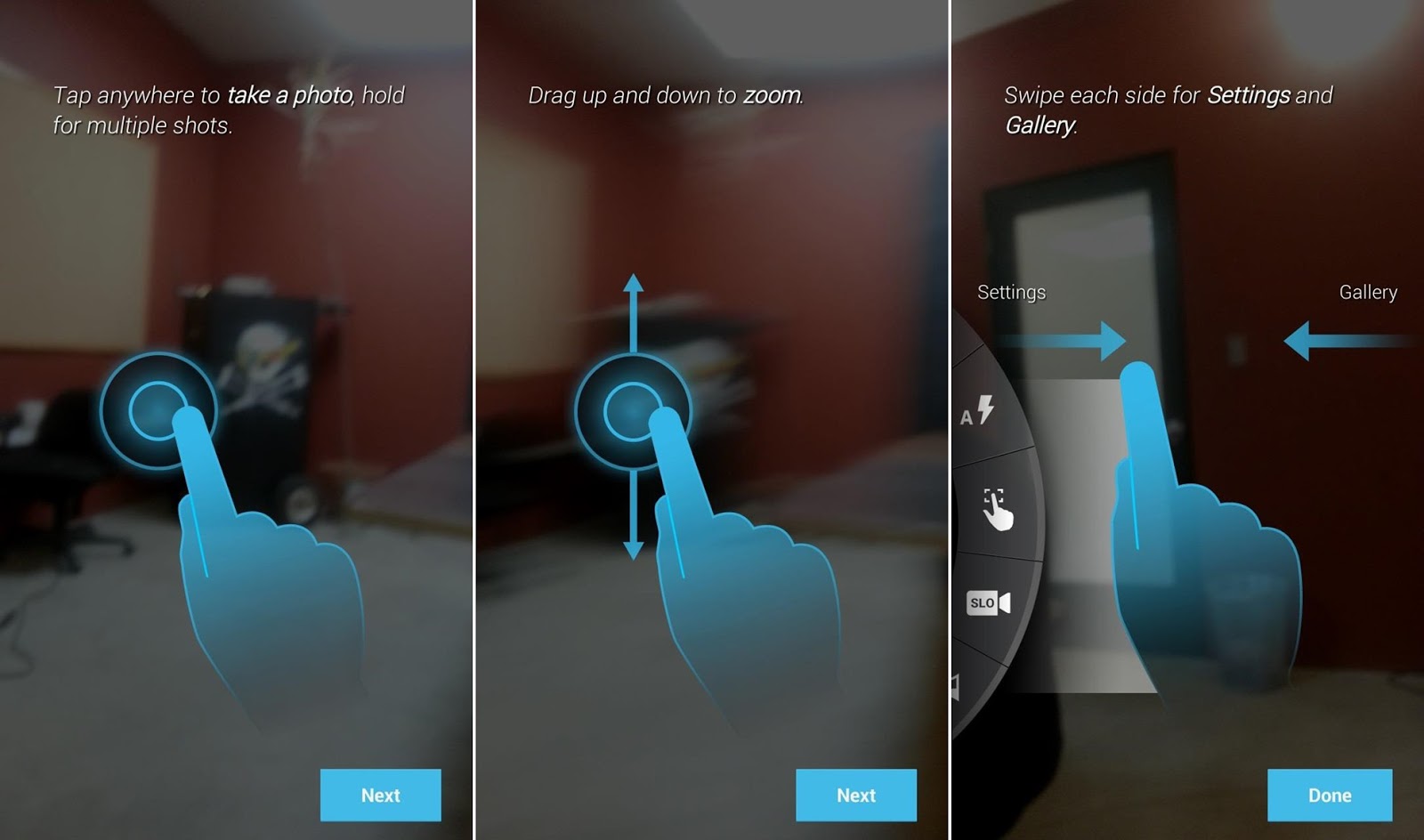
The Moto X Camera will not replace your stock camera, so you'll have two camera icons on your Note 2. When you open the Moto X Camera for the first time, you'll be taken through a quick tutorial on a few of the features.
Snapping Photos
If you want to take a photo, tap anywhere (as you would with any other camera). If you want to take multiple shots, hold down on the screen.
Settings & Gallery
If you want to check out the settings (flash, HDR, etc.), you can swipe right from the left side of the screen. If you want to see your gallery of photos, swipe left from the right side of the screen.
What You Need to Know
If you do check out the settings, be warned that not all of the functions will work, seeing as the leak is an early rip of the fully functional camera. A few of the features that don't work at the moment are:
• Double-flick wrist gesture (but you can use Osas's guide to get this using another app)
• HDR is disabled
• Slow-Motion is disabled
• Panorama mode crashes sometimes

With that being said, everything else works great. In the future, the APK might get updated so that all the features can work, so stay updated at this XDA Developers thread.
.jpg)
.jpg)
.jpg)


