Showing posts with label Computer Tips and Tricks. Show all posts

How To Turn Your Laptop into a Wi-Fi Hotspot with Connectify!

Room distance away from WIFI router can cause minimum WIFI signal or you might be at a location where there is only one Ethernet connection available and you need to share the Internet connection with other people or devices. So you might need to create a WiFi hotspot quickly intervening so other wireless devices can use an Internet connection. Now you may make your laptop into an instant WiFi hotspot. To do so, watch this video tutorial.

VIDEO GUIDE

Download Connectify
Mirror Zippyshare [6MB]

NOTE: Connectify only works with Windows 7 Home and above, Starter is not supported.

How To Setup Mail Apps in Windows 8

Setup your email to work more comfortable and close with your mail or mailbox.With the help of this video you can easily setup your mail apps in windows 8. Just follow the steps, shows in this video.


Credit for Randy Mckown this nice video.

How To Disable Lock Screen in Windows 8

Time is important, and for others, it's simply just being impatient. Having your computer start up as quickly as possible is usually a plus for anyone. If you have Windows 8, the start up times have drastically improved compared to older systems, Win7, WinXP. You want to speed up things ever faster, just disable the lock screen.

The lock screen is a nice little addition, but not necessary for PC users. It's just a cover for the login screen that tells you the time, weather, and date. To get to the login screen, you can drag it up and away, hit escape, or click on it. To get rid of it completely, follow these quick guide.

Step 1: Open Run
You will need to launch the Local Group Policy Editor. To do this, hit the Windows Key and R to open up the all-too-familiar Run program. 

Step 2: Open Local Group Policy Editor
Type gpedit.msc and then click OK. This will now open up the Local Group Policy Editor.

Step 3: Open Personalization
From the screen shown above, click on Computer Configuration -> Administrative Templates -> Control Panel -> Personalization.

Step 4: Lock Screen Settings
You will see the option Do not display the lock screen. Double-click on this and the window below will pop up.

Step 5: Enable "Do Not Lock"
The Do not display lock screen is currently not configured, so make sure to select Enabled and press OK.

Not sure yet? Follow the steps from this video guide.

Double Check  To ensure you have done everything correctly, go back to the Local Group Policy Editor -> Computer Configuration -> Administrative Templates -> Control Panel -> Personalization, and make sure that it shows Do not display lock screen is Enable.

 Now, your Lock Screen should no longer come up. Share to your friends!

How To Bypass Password Login Screen on Windows 8

It's good to password-protect your PC to make sure that your personal files, folders, and important documents are safe and can't be modified without your permission. Though, entering the password all of the time before using your computer might frustrate you.  Here, you will be find an easy way to remove passwords in such a way that Windows will automatically get to the desktop without asking you to enter the system password. Though, you can restore it back whenever you feel that your system is not safe anymore.


VIDEO GUIDE

You can follow the same steps to bypass password screen on previous version of Windows too, not just Windows 8. Enjoy!

How To Run Android Applications in Windows PC or Mac

As we all know that Android is made a bug name with its operating system and popular apps running in Android smartphone but now it is not limited to android smartphone only. Now, you can run android apps in your windows using program called Bluestack. BlueStacks App Player lets you run apps from your phone fast and fullscreen on Windows and Mac. 


Now, you are free to download any of your favorite android apps in your PC or Mac. like Whatsapp, Viber, Instagram, Insta Weather, Evernote, Accuweather, etc. Enjoy!

How To Add Thumbnails To Video Files in Windows Explorer

Video file won't show the thumbnail? It happen to some of windows 7 user. Wish you had thumbnails to those video files in Windows Explorer? Media Preview can do the job for you.


Download Link - Media Preview

Now all of your video file will be a thumbnail. Enjoy! =D

+credit: Tekzilla

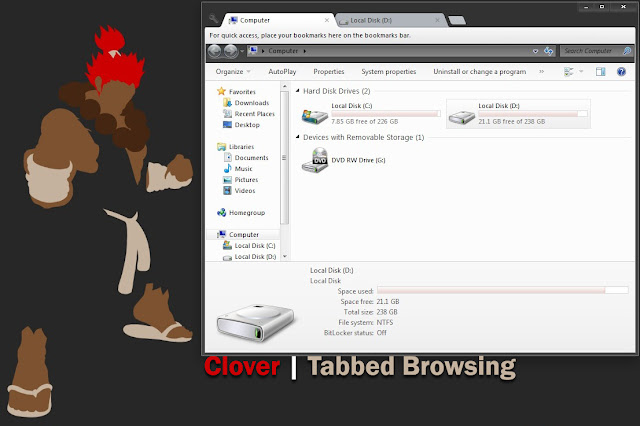
Clover - Add Tabbed Browsing in Windows Explorer

You can use the tab function in Windows Explorer just like in Google Chrome. Yes, it is possible with Clover. Clover - Wings for your Windows Explorer! Clover is an extension of the Windows Explorer, to add multi-tab functionality similar to Google Chrome browser.


How it works? Watch this video:


Clover allows Windows user to have Tabbed Browsing just like in Google Chrome:
• Can create new tab in My Computer
• Keyboard shortcut: Ctrl + T, Ctrl + W and Tab Control - multitasking more efficient and quick
• Very light and did not slow down the computer 
• Certainly simplify
• Can bookmark folders or directories
• Worked with Windows XP, Vista, 7 and 8 (32-bit & 64-bit)

Download from the official site: Clover - Wings for your Windows Explorer!

or, Download it from Softpedia.

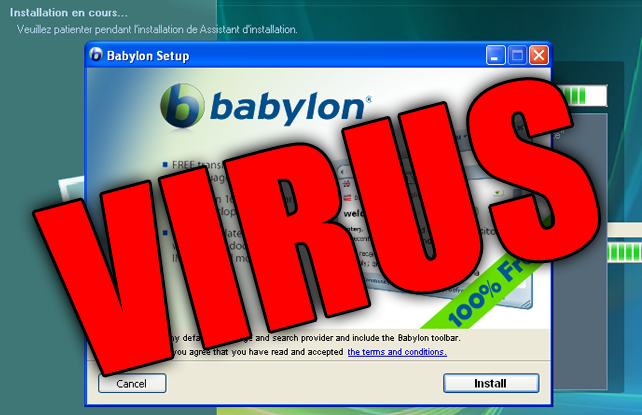
How To Get Rid of Babylon Search

Do you have problem with Babylon search with your Mozilla Firefox? That was extremely annoying. So, let's get rid of it quickly. This is the most worked way to remove it.


STEPS
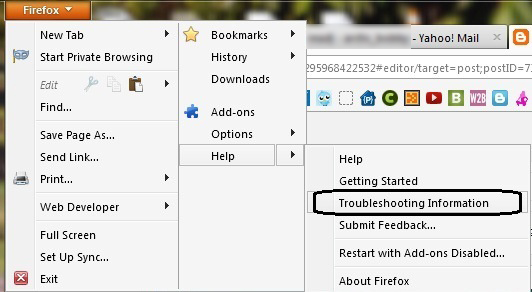
1. Go to Firefox tab -> Help -> Troubleshooting Information


2. Then, click on the "Reset Firefox"


3. Firefox will restart and will work perfectly after that.

Bye bye Babylon. :P

Leave your comment as appreciation.  :D

How To Create Screenshot with Media Player Classic (MPC)

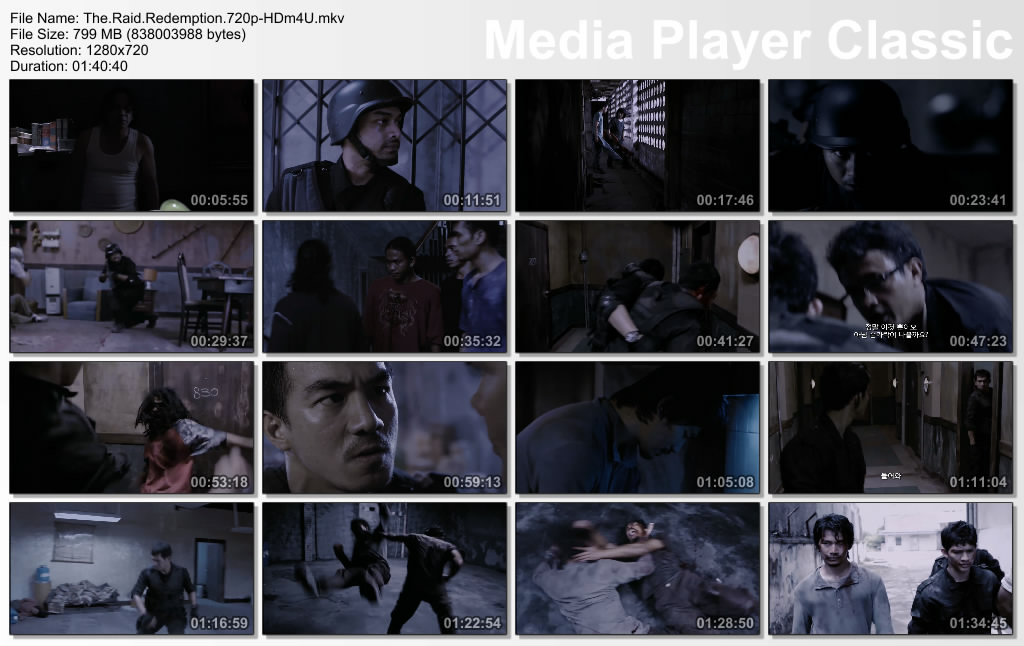
Have you seen screenshot like this?


You wanna create it yourself? It's easy. Just using your Media Player Classic. Easily follow this steps.

1. Of course you need to have Media Player Classic (MPC). Download it here.

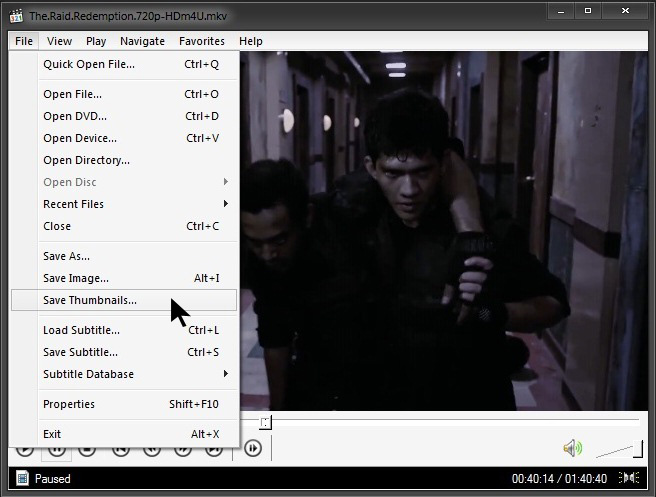
2. Play any movie that you want to take a screenshot. Then, go to File tab --> Save Thumbnails


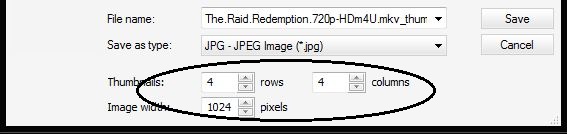
3. Then, you can customize the amount of thumbnails, columns or image width. Don't forget to set directory where you want to save the screenshot.


4. When you finish customizing, just click Save.

Finish!

You can create a screenshot of any film with MPC. Have a nice day! =)

How To Fix Multiple Networks at Startup But No Internet Access

Can't connect to the internet because it's showing as being connected to multiple networks? A Home network and an Unidentified network.  When you facing this problem, just follow this tutorial.

Apparently there is an Apple program called "Bonjour Services" it is installed in Windows 7 with programs like iTunes. It is also installed with Adobe PS3 programs but usually shows up as ##Id_String1.6844F930_1628_4223_B5CC_5BB94B879762## in Adobe.

To see if you have the Bonjour service or ##Id_String1.6844F930_1628_4223_B5CC_5BB94B879762## running on your PC.

1. Click Start Right-click "Computer" and select "Manage".
2. Expand "Services and Applications" -> "Services".
3. Find the Bonjour name or ##Id_String1.6844F930_1628_4223_B5CC_5BB94B879762## in the list of services.
4. Double-click this to open up a Window.
5. Under the General Tab next to Start-up Type Select Disabled from the drop down.
6. Finish!

Now test and see if you still have connectivity issues. Good luck!


credit: w7forum.com

How To Delete Windows.Old Folder

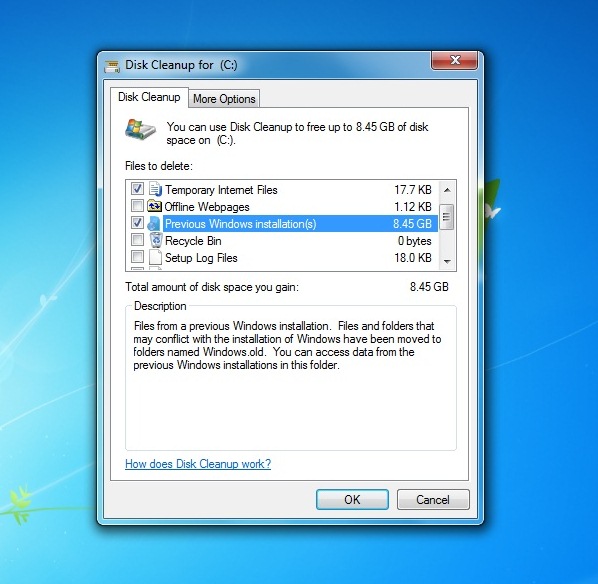
After finished installing you new windows OS, it will leave a folder named as Windows.Old. It is also used a big size of your hard drive. You cannot easily delete it. So, follow this instructions.

STEP TO DELETE WINDOWS.OLD

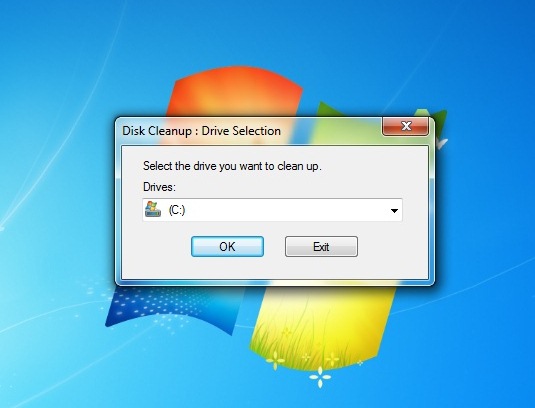
1. Open Disk Cleanup program. Go to Start Menu >> All Programs >> Accessories >> System Tools >> Disk Cleanup


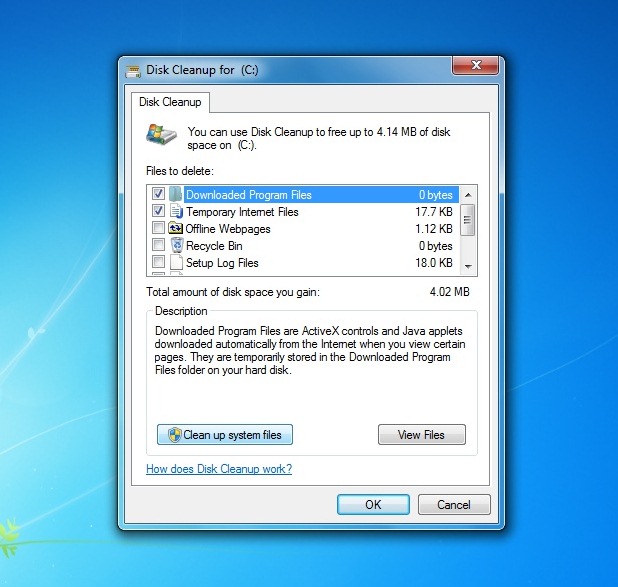
2. Then, click Clean up system files >> Ok


3. After that, check Previous Windows Installation(s), then click Ok.


4. Just wait til' finish.

Now, folder Windows.Old is deleted. :)

How To Partition and Resize Hard Drive using EASEUS Partition Master

Download EASEUS Partition Master HERE.

In this tutorial I show you how to partition and resize your hard drive or hard disk using EASEUS Partition Master. It's really easy. 


Good luck guys!

Download EASEUS Partition Master 9.1 Server Edition


As Partition Magic alternative, EASEUS Partition Master Home Edition is a FREE ALL-IN-ONE partition solution and disk management utility. It allows you to extend partition (especially for system drive), manage disk space easily, settle low disk space problem on MBR and GUID partition table (GPT) disk.

• Resize/Move partition
• Extend system drive
• Copy disk & partition
• Merge partition
• Split partition
• Redistribute free space
• Convert dynamic disk
• Recover partition


Download: EASEUS Partition Master 9.1 Server Edition

Password: howtohouse

How To Partition and Resize Hard Drive using EASEUS? Follow this tutorial.

How To Change Back .lnk Files to Normal

The .lnk file extension refers to a shortcut link on your computer, not the actual file. This occurs when you upload the document while the file is still open or if you load the file from the Recent Files folder instead of My Documents, My Computer, or the Desktop.


This problem make you uncomfortable to use your computer. So let's fix it now.

METHOD #1
1. Open the Registry Editor (click Windows + R, type regedit, hit enter).

2. Navigate to this registry branch:

HKEY_CURRENT_USER\Software\Microsoft\Windows\CurrentVersion\Explorer\FileExts\.lnk

3. Find the subkey called User Choice and delete it.

4. Close Registry Editor.

5. Reboot your PC.


METHOD #2
Just run this tool to fix it automatically;

#Window 7
#Windiws Vista


No more .lnk files. Enjoy guys! =)

How To Bypass Survey To Continue Download in Most Website

This surveys always annoys user and make us not interested to download the file we want. It kills our interest. The site like sharecash use this surveymethod to earn some money. The surveys is look something like this:


You wanna get rid from this annoying survey? Actually it's really easy to bypass the freakin' survey. Let's know how.

BYPASS SURVEY
All you need to do is DISABLE JAVASCRIPT.

Mozilla - Go to Options ->> Content ->> Uncheck Enable Javascript.


Same goes to other browser. Just DISABLE JAVASCRIPT.

Easy aite! Enjoy your downloads! =)

Change Your Folder To Any Color in Windows Explorer

Windows Explorer is too boring? Folder Colorizer is a nifty little software that add colorize functions to any folders in Windows explorer. Color it up! Assign any color to any folder – just right-click a folder and choose “Colorize”! Supports your own colors, labels and works seamlessly with any version of Windows.


HOW TO APPLY
• Right click on any folders > select Colorize > Yellow, Lawn Green, Red, Blue, Silver, Violet, Sandy Brown or Aquamarine.

• You can also choose other colours that are not enabled by default. You also can pick your own color by select Color...

Folder Colorizer is compatible with Windows XP, Vista and 7. It also works up to Windows 8 Developer Preview.

DOWNLOAD: Folder Colorizer

Credits: Softorino

How To Boost PC Transfer Rate

If you think your PC transfer rate is not fast enough, you can boost your transfer rate speed using Teracopy. One of the most common complaints about newer versions of Windows is the slow copying speed, especially when transferring lots of files over the network. If you want to speed up your copying or if you regularly transfer large amounts of data and have to stop the process to perform some other disk-intensive task, this program may be just what you need.

TeraCopy is designed to copy and move files at the maximum possible speed. It skips bad files during the copying process, and then displays them at the end of the transfer so that you can see which ones need attention. TeraCopy can automatically check the copied files for errors by calculating their CRC checksum values. It also provides a lot more information about the files being copied than its Windows counterpart. TeraCopy integrates with Windows Explorer's right-click menu and can be set as the default copy handler.

Teracopy screenshot

FEATURES:
• Copy files faster
TeraCopy uses dynamically adjusted buffers to reduce the seek times. Asynchronous copying speeds up the file transfer between two physical hard drives.

• Pause and resume file transfer activities
Pause the copy process at any time in order to free up system resources and continue with a single click.

• Error recovery
In case of a copy error, TeraCopy will try several times to recover and, in the worse case scenario, will simply skip the file, not terminating the entire transfer.

• Interactive file list
TeraCopy shows the failed file transfers and lets you fix the problem and recopy only the problem files.

• Shell integration
TeraCopy can completely replace the Explorer copy and move functions, in turn enabling you to work with files as usual.

• Full Unicode support.

• Windows 8 x64 support.

DOWNLOAD: TERACOPY | 1.8MB

[source]

How To Create a Fake PC Virus

Wanna make some fun with your friends? How about create a fake virus and put it their desktop. Wait and see their reaction. LOL.


CODE:
X=MsgBox("Message Description",0+16,"Title")

1. You can write any number from 1,2,3 or 4 instead of 0 (before the '+' symbol) and here is the meaning of these numbers:

0 = OK Button,
1 = OK / Cancel Button,
2 = Abort / Retry / Ignore Button,
3 = Yes / No / Cancel Button,
4 = Yes / No Button,


2. You can write 32 or 48 or 16 instead of 64. Here is the meaning of each number:

16 = Critical Icon,
32 = Help Icon,
48 = Warning Icon,
64 = Information Icon,

Make sure you add ".vbs" after the name.

Finish. Have fun. :)

credit: HatifHammad

How To Partitioning or Resize Hard Drive in Windows 7

Do you want to partitioning your hard drive in windows 7 but did not know how? Or you want to resize your hard drive? It use to be the same method in windows vista. For more details, HOW-TO HOUSE will share a tutorial to partitioning and resize your hard drive in windows 7. Let's check this video.

How To Save Windows Movie Maker as HD in Windows 7


Windows 7 users have some problem to save Windows Movie Maker (WMM) video as High Definition (HD) format such as HD 1280x720, HD 1440x1080, HD 1920x1080 or HD 960x720 just like in the Windows Vista. So, HOW-TO HOUSE  want to share tutorial how to save Windows Movie Maker as HD video in Windows 7. So, let's start guys.