Showing posts with label Blogger Tutorial. Show all posts

How To Embed Any Facebook Post on Website or Blog

Yep, now you can embed any Facebook post whether it's your post, friends posts, or from any facebook page post. Facebook has added a new “embedded posts” feature to help you embed any Facebook content – you can embed photographs, videos or even regular status updates – on another website or blog.

You can easily embed any image on your website or blog just like embedding Youtube videos. Example:

Once embedded, a post is like a little bit of Facebook living on your website. Visitors can like the post, and share it right from your blog.

But you post want to embed, the facebook account must enable the Embedded Posts functionality. However you still can embed any Facebook content on your website even if “Embedded Posts” are not officially available for that Facebook account. Here are the trick.

Use this provided code below. Just replace YOUR_URL_HERE with the facebook post permalink.
<div id="fb-root"></div>
<script>
(function(d, s, id) {
var js, fjs = d.getElementsByTagName(s)[0];
if (d.getElementById(id))
return;
js = d.createElement(s);
js.id = id;
js.src = "//connect.facebook.net/en_US/all.js#xfbml=1";
fjs.parentNode.insertBefore(js, fjs);
}(document, 'script', 'facebook-jssdk'));
</script>
<fb:post href="YOUR_URL_HERE"></fb:post>
 If you wisht to embed another Facebook post on the same web page, you don’t have to copy-paste the entire snippet. Just add a new <fb:post href="YOUR_URL_HERE"></fb:post>

VIDEO GUIDE

Embed your own facebook page content to your blog or website to widely promoting your products.

+credit: Labnol
+Share it to recommend it!

How To Embed Instagram Photos or Videos on a Website or Blog

Having trouble to embed Instagram images or videos on your blog? Embed code is not found everywhere. Now we will learn how to embed Instagram images and videos through this video. Got in done in 2 minutes. Start to promote your Instagram images and videos in your website or blog.

VIDEO GUIDE

Embed instagram images and videos easily.

How To Shorten Your Links Using Your Own Domain Name

Of course we all know about Adf.ly and how it can make money for us by just shortening. It works well with me. Every end of the month, Adf.ly will credit my earning to my Paypal account. But, for who don't have idea what is Adf.ly is about, read my article in the previous post

Adf.ly just added new tool to their users which called Domain. This tool will allow you use to use your own custom domain names or sub domains with Adf.ly service. There are many benefits for doing this:

Website branding - if your blog is URL is http://www.wrestling.com, your adf.ly links could now look like http://go.wrestling.com/Ad3g
Greater number of clicks - people are starting to associate an adf.ly link with advertising and may not click a link for this reason.
Peace of mind - you own the domain and can download an Excel export of all of your URLs. If you were worried adf.ly may disappear one day (it won't!) then you are in full control.
Low profile - in the past Twitter and other services have had problems with adf.ly links. If you use a custom domain, an automated scan will not detect adf.ly links on your account.

People will no more face problems with Facebook or Twitter or any other website Blocking Adf.ly. It adds more credibility to your shortened links so your visitors, when they see your domain name, will trust it and go for it .

LET'S START
1. First of all, you will need Adf.ly account. Register for free here.

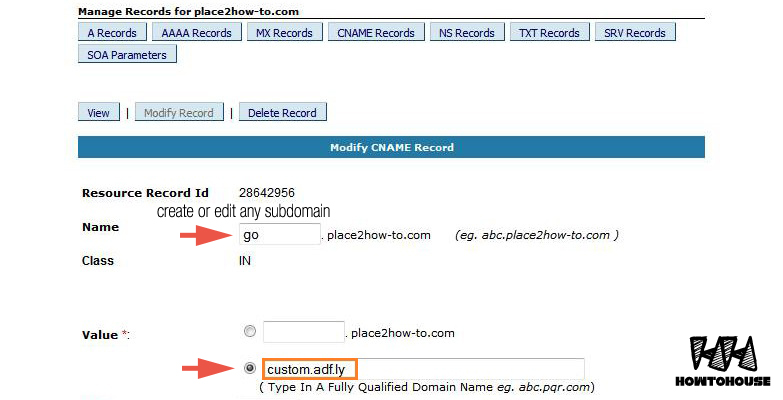
2. Then go to the Cpanel of your website => DNS Zone Editor => Add a new CNAME RECORD

3. In the Name section, enter any subdomain you want but not an existing one. In the Value*, enter the following adress custom.adf.ly

4. Save the CNAME. Now, you're done with CNAME.

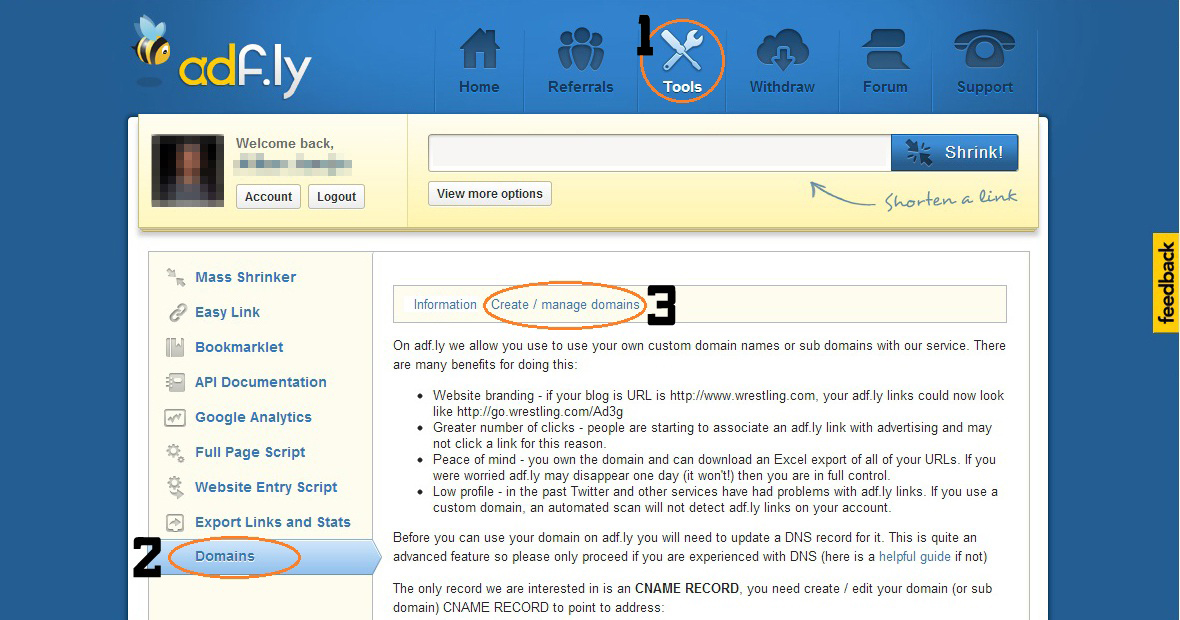
5. Return to your Adf.ly account. Go to Tools => Domains => Create / manage domains

6. Enter your sub-domain in the box and Add Custom Domain

7. Congratz! Now, you should see your sub domain listed in the domain section. You can start making money with your Adf.ly.

With this feature, Adf.ly links is look trusted and visitor has no worries to click it.

+Share it to recommend it! :D

How To Remove Links From Blogger Comments Automatically With jQuery

Every blogger hates spammer. So to combating them is by preventing the use of HTML-based codes that enables the embedding of hyperlinked texts. You can remove links from blogger comments Automatically with jQuery. Simply follow the instructions below.

#STEPS:
1. Go to Dashboard ->> Template ->>; Edit HTML

2. Search this code (Ctrl + F), </body>, and then copy/paste the code below just right above it.
<script src='https://ajax.googleapis.com/ajax/libs/jquery/1.8.3/jquery.min.js'/>
<script>$('.comment-content a[rel$=nofollow]').replaceWith(function(){return ($(this).text());});</script>

3. If you want the hyperlinked texts removed entirely than just disabling the hyperlinked text, then copy/paste this code below instead.
<script src='https://ajax.googleapis.com/ajax/libs/jquery/1.8.3/jquery.min.js'/>
<script>$('.comment-content a[rel$=nofollow]').hide());</script>

NOTE: If you already have the part that’s highlighted already in your template’s code then exclude it and just copy the remainder of the code.

4. Save your template. That’s it. Done!

Share it to your friends!

Install Lazy Load in Blogger

If your blog or website containing many images, Lazy Load will be very helpful to you. It can reduce the page loading time of your site. Lazy loader is a jQuery plugin written in JavaScript. It delays loading of images in (long) web pages. Images outside of viewport (visible part of web page) wont be loaded before user scrolls to them. Using lazy load on long web pages containing many large images makes the page load faster. Browser will be in ready state after loading visible images. In some cases it can also help to reduce server load. Lazy Load is a famous plugin for wordpress blogger.


#Steps:
1. Go to Dashboard ->> Design ->>; Edit HTML

2. Search this code (Ctrl + F), </head>

3. Then, paste the code below, before </head>
&lt;script charset=&#39;utf-8&#39; src=&#39;http://ajax.googleapis.com/ajax/libs/jquery/1.9.0/jquery.min.js&#39; type=&#39;text/javascript&#39;/&gt;

&lt;script type=&#39;text/javascript&#39;&gt;
//&lt;![CDATA[

/*
 * Lazy Load - jQuery plugin for lazy loading images
 *
 * Copyright (c) 2007-2009 Mika Tuupola
 *
 * Licensed under the MIT license:
 *   http://www.opensource.org/licenses/mit-license.php
 *
 * Project home:
 *   http://www.appelsiini.net/projects/lazyload
 *
 * Version:  1.5.0
 *
 */
(function($) {

    $.fn.lazyload = function(options) {
        var settings = {
            threshold    : 0,
            failurelimit : 0,
            event        : &quot;scroll&quot;,
            effect       : &quot;show&quot;,
            container    : window
        };
              
        if(options) {
            $.extend(settings, options);
        }

        /* Fire one scroll event per scroll. Not one scroll event per image. */
        var elements = this;
        if (&quot;scroll&quot; == settings.event) {
            $(settings.container).bind(&quot;scroll&quot;, function(event) {
              
                var counter = 0;
                elements.each(function() {
                    if ($.abovethetop(this, settings) ||
                        $.leftofbegin(this, settings)) {
                            /* Nothing. */
                    } else if (!$.belowthefold(this, settings) &amp;&amp;
                        !$.rightoffold(this, settings)) {
                            $(this).trigger(&quot;appear&quot;);
                    } else {
                        if (counter   &gt; settings.failurelimit) {
                            return false;
                        }
                    }
                });
                /* Remove image from array so it is not looped next time. */
                var temp = $.grep(elements, function(element) {
                    return !element.loaded;
                });
                elements = $(temp);
            });
        }
      
        this.each(function() {
            var self = this;
          
            /* Save original only if it is not defined in HTML. */
            if (undefined == $(self).attr(&quot;original&quot;)) {
                $(self).attr(&quot;original&quot;, $(self).attr(&quot;src&quot;));   
            }

            if (&quot;scroll&quot; != settings.event ||
                    undefined == $(self).attr(&quot;src&quot;) ||
                    settings.placeholder == $(self).attr(&quot;src&quot;) ||
                    ($.abovethetop(self, settings) ||
                     $.leftofbegin(self, settings) ||
                     $.belowthefold(self, settings) ||
                     $.rightoffold(self, settings) )) {
                      
                if (settings.placeholder) {
                    $(self).attr(&quot;src&quot;, settings.placeholder);    
                } else {
                    $(self).removeAttr(&quot;src&quot;);
                }
                self.loaded = false;
            } else {
                self.loaded = true;
            }
          
            /* When appear is triggered load original image. */
            $(self).one(&quot;appear&quot;, function() {
                if (!this.loaded) {
                    $(&quot;&lt;img /&gt;&quot;)
                        .bind(&quot;load&quot;, function() {
                            $(self)
                                .hide()
                                .attr(&quot;src&quot;, $(self).attr(&quot;original&quot;))
                                [settings.effect](settings.effectspeed);
                            self.loaded = true;
                        })
                        .attr(&quot;src&quot;, $(self).attr(&quot;original&quot;));
                };
            });

            /* When wanted event is triggered load original image */
            /* by triggering appear.                              */
            if (&quot;scroll&quot; != settings.event) {
                $(self).bind(settings.event, function(event) {
                    if (!self.loaded) {
                        $(self).trigger(&quot;appear&quot;);
                    }
                });
            }
        });
      
        /* Force initial check if images should appear. */
        $(settings.container).trigger(settings.event);
      
        return this;

    };

    /* Convenience methods in jQuery namespace.           */
    /* Use as  $.belowthefold(element, {threshold : 100, container : window}) */

    $.belowthefold = function(element, settings) {
        if (settings.container === undefined || settings.container === window) {
            var fold = $(window).height()   $(window).scrollTop();
        } else {
            var fold = $(settings.container).offset().top   $(settings.container).height();
        }
        return fold &lt;= $(element).offset().top - settings.threshold;
    };
  
    $.rightoffold = function(element, settings) {
        if (settings.container === undefined || settings.container === window) {
            var fold = $(window).width()   $(window).scrollLeft();
        } else {
            var fold = $(settings.container).offset().left   $(settings.container).width();
        }
        return fold &lt;= $(element).offset().left - settings.threshold;
    };
      
    $.abovethetop = function(element, settings) {
        if (settings.container === undefined || settings.container === window) {
            var fold = $(window).scrollTop();
        } else {
            var fold = $(settings.container).offset().top;
        }
        return fold &gt;= $(element).offset().top   settings.threshold    $(element).height();
    };
  
    $.leftofbegin = function(element, settings) {
        if (settings.container === undefined || settings.container === window) {
            var fold = $(window).scrollLeft();
        } else {
            var fold = $(settings.container).offset().left;
        }
        return fold &gt;= $(element).offset().left   settings.threshold   $(element).width();
    };
    /* Custom selectors for your convenience.   */
    /* Use as $(&quot;img:below-the-fold&quot;).something() */

    $.extend($.expr[&#39;:&#39;], {
        &quot;below-the-fold&quot; : &quot;$.belowthefold(a, {threshold : 0, container: window})&quot;,
        &quot;above-the-fold&quot; : &quot;!$.belowthefold(a, {threshold : 0, container: window})&quot;,
        &quot;right-of-fold&quot;  : &quot;$.rightoffold(a, {threshold : 0, container: window})&quot;,
        &quot;left-of-fold&quot;   : &quot;!$.rightoffold(a, {threshold : 0, container: window})&quot;
    });
  
})(jQuery);

//]]&gt;
&lt;/script&gt;

&lt;script charset=&#39;utf-8&#39; type=&#39;text/javascript&#39;&gt;

$(function() {

   $(&amp;quot;img&amp;quot;).lazyload({placeholder : &amp;quot;https://blogger.googleusercontent.com/img/b/R29vZ2xl/AVvXsEgfRVXmTp5ikwn7UNLqsza79px1CvPaaHnoWQug0hQWqn3g3i69PehRyZBkwRa5HzN_HIdMQE80HLLbUgqa1WhqrFd3omj_g3NO0uYRtd9OnVZn7ZkH7F2Y6QHWEcnu8gPa-Crxckm7j1Y/s1600/grey.gif&amp;quot;,threshold : 200});

});

&lt;/script&gt;

4. Save your template.

Refresh your blog to see the result. Finish!

Enjoy boss!

How To Hide Blog Posts From Blogger Home Page

Blog post is the main item sholud have in blogger main page. But if you have some idea to your blog theme and want to hide the blog post. This tutorial is just for you.


#steps:
1. Go to Dashborad => Design => Edit HTML (Edit Template HTML)

2. Search this code (Ctrl + F), ]]></b:skin>. Paste the code below after ]]></b:skin>.

<b:if cond="data:blog.url == data:blog.homepageUrl">
<style type="text/css">
.post, .sidebar, #blog-pager {display:none;}
</style>
</b:if>
<b:if cond="data:blog.url == data:blog.homepageUrl">
<style type="text/css">
body#layout .sidebar {display:inline;margin-top:200px;}
</style>
</b:if>

With the code, you hide your blog post and sidebar. If you want to show your sidebar, just remove the .sidebar, code.

3. Save and finish. Refresh to see the result.

Like and share man! :)

+credit: Anandz.co.in

How To Add Popular Post Widget Like Wordpress in Blogger

Multi-colored Popular Post widget on wordpress was very charming and colorful. Now blogger users also can use this widget. We also use this widget in this blog. You also definitely will love it. 


Note: Before making any changes to your template, take a full backup of your blogger template.

#Step:
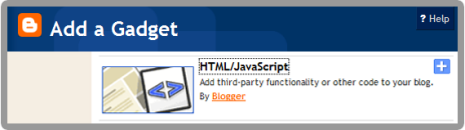
1. Go to Dashboard ->> Layout ->> Add a gadget ->> POPULAR POST


2. Save. Now, go to Template ->> Edit HTML

3. Click Expand Widget Template. Search this code (Ctrl + F), 

/* Variable definitions
====================
4. Just under the code, paste this code below:
<Variable name="PopularPosts.background.color1" description="background color1" type="color" default="#fa4242" value="#ff4c54"/>
<Variable name="PopularPosts.background.color2" description="background color2" type="color" default="#ee6107" value="#ff764c"/>
<Variable name="PopularPosts.background.color3" description="background color3" type="color" default="#f0f" value="#ffde4c"/>
<Variable name="PopularPosts.background.color4" description="background color4" type="color" default="#ff0" value="#c7f25f"/>
<Variable name="PopularPosts.background.color5" description="background color5" type="color" default="#0ff" value="#33c9f7"/>
<Variable name="PopularPosts.background.color6" description="background color6" type="color" default="#ff0" value="#7ee3c7"/>
<Variable name="PopularPosts.background.color7" description="background color7" type="color" default="#ff0" value="#f6993d"/>
5. Then, search this code (Ctrl + F), ]]></b:skin>. Paste the code below before it.
#PopularPosts1 ul{margin:0;padding:5px 0;list-style-type:none}
#PopularPosts1 ul li{position:relative;margin:5px 0;border:0;padding:10px}
#PopularPosts1 ul li:first-child{background:$(PopularPosts.background.color1);width:90%}
#PopularPosts1 ul li:first-child:after{content:"1"}
#PopularPosts1 ul li:first-child   li{background:$(PopularPosts.background.color2);width:85%}
#PopularPosts1 ul li:first-child   li:after{content:"2"}
#PopularPosts1 ul li:first-child   li   li{background:$(PopularPosts.background.color3);width:80%}
#PopularPosts1 ul li:first-child   li   li:after{content:"3"}
#PopularPosts1 ul li:first-child   li   li   li{background:$(PopularPosts.background.color4);width:75%}
#PopularPosts1 ul li:first-child   li   li   li:after{content:"4"}
#PopularPosts1 ul li:first-child   li   li   li   li{background:$(PopularPosts.background.color5);width:70%}
#PopularPosts1 ul li:first-child   li   li   li   li:after{content:"5"}
#PopularPosts1 ul li:first-child   li   li   li   li  li{background:$(PopularPosts.background.color6);width:65%}
#PopularPosts1 ul li:first-child   li   li   li   li   li:after{content:"6"}
#PopularPosts1 ul li:first-child   li   li   li   li   li  li{background:$(PopularPosts.background.color7);width:60%}
#PopularPosts1 ul li:first-child   li   li   li   li   li   li:after{content:"7"}
#PopularPosts1 ul li:first-child:after,
#PopularPosts1 ul li:first-child   li:after,
#PopularPosts1 ul li:first-child   li   li:after,
#PopularPosts1 ul li:first-child   li   li   li:after,
#PopularPosts1 ul li:first-child   li   li   li   li:after,
#PopularPosts1 ul li:first-child   li   li   li   li   li:after,
#PopularPosts1 ul li:first-child   li   li   li   li   li   li:after{position:absolute;top:20px;right:-15px;border-radius:50%;background:#353535;width:30px;height:30px;line-height:1em;text-align:center;font-size:28px;color:#fff}
#PopularPosts1 ul li .item-thumbnail{float:left;border:0;margin-right:10px;background:transparent;padding:0;width:40px;height:40px}
#PopularPosts1 ul li a{font-size:12px;color:#444;text-decoration:none}
#PopularPosts1 ul li a:hover{color:#222;text-decoration:none}
#PopularPosts1 img{-webkit-transition:all 0.5s ease;-moz-transition:all 0.5s ease;transition:all 0.5s ease;padding:4px;background: #eee;background: -webkit-gradient(linear, left top, left bottom, from(#eee), color-stop(0.5, #ddd), color-stop(0.5, #c0c0c0), to(#aaa));background: -moz-linear-gradient(top, #eee, #ddd 50%, #c0c0c0 50%, #aaa);-webkit-border-radius: 4px;-moz-border-radius: 4px;border-radius: 4px;-webkit-box-shadow: 0 0 3px rgba(0,0,0,.7);-moz-box-shadow: 0 0 3px rgba(0,0,0,.7);box-shadow: 0 0 3px rgba(0,0,0,.7);}
#PopularPosts1 img:hover{-moz-transform: scale(1.2) rotate(-350deg);-webkit-transform: scale(1.2) rotate(-350deg);-o-transform: scale(1.2) rotate(-350deg);-ms-transform: scale(1.2) rotate(-350deg);transform: scale(1.2) rotate(-350deg);-webkit-box-shadow: 0 0 20px rgba(255,0,0,.4), inset 0 0 20px rgba(255,255,255,1);-moz-box-shadow: 0 0 20px rgba(255,0,0,.4), inset 0 0 20px rgba(255,255,255,1);box-shadow: 0 0 20px rgba(255,0,0,.4), inset 0 0 20px rgba(255,255,255,1);}
.JayRyan-moresubs {
background: none repeat scroll 0 0 #EBEBEB;
border-style: solid;
border-width: 1px;
border-color: #fff #ccc #ccc;
padding: 3px 8px 3px 3px;
text-align: right;
font-size: 7px;
letter-spacing: 1px;
}
.JayRyan-moresubs a {
display: inline-block;
font-weight: bold;
color: #1E598E;
text-decoration: none;
text-shadow: 1px 1px 1px #fff;
}
6. Then, highlight this code. From <b:widget id='PopularPosts1' to </b:widget>
<b:widget id='PopularPosts1'

-----------

</b:includable>
</b:widget>
7. Replace the higjligted code with this code:
<b:widget id='PopularPosts1' locked='false' title='Top 3 Of The Week' type='PopularPosts'>
<b:includable id='main'>
<b:if cond='data:title'>
<h2><data:title/></h2>
</b:if>
<div class='widget-content popular-posts'>
<ul>
<b:loop values='data:posts' var='post'>
<li>
<b:if cond='data:showThumbnails == &quot;false&quot;'>
<b:if cond='data:showSnippets == &quot;false&quot;'>
<a expr:href='data:post.href' expr:title='data:post.title' rel='bookmark'><data:post.title/></a>
<b:else/>
<a expr:href='data:post.href' expr:title='data:post.snippet' rel='bookmark'><data:post.title/></a>
</b:if>
<b:else/>
<b:if cond='data:showSnippets == &quot;false&quot;'>
<b:if cond='data:post.thumbnail'>
<img class='item-thumbnail' expr:alt='data:post.title' expr:src='data:post.thumbnail'/>
<b:else/>
<img alt='no image' class='item-thumbnail' src='https://blogger.googleusercontent.com/img/b/R29vZ2xl/AVvXsEjrPLsJsea3y_TMSPLYv6lCu4ql1UE7aMy_pjyZt0U43mwEMBnd5rDwwFMANCBAzv_haskbEHeoz7_Od6VG-Q1hv-C9a8T2Y5Kw9x0zLNSI5rd5ghH-E2UifniHlTjQZxJx1k0vj5cMBts/s1600/Default..Logo.png'/>
</b:if>
<a expr:href='data:post.href' expr:title='data:post.title' rel='bookmark'><data:post.title/></a>
<div class='clear'/>
<b:else/>
<b:if cond='data:post.thumbnail'>
<img class='item-thumbnail' expr:alt='data:post.title' expr:src='data:post.thumbnail'/>
<b:else/>
<img alt='no image' class='item-thumbnail' src='https://blogger.googleusercontent.com/img/b/R29vZ2xl/AVvXsEjrPLsJsea3y_TMSPLYv6lCu4ql1UE7aMy_pjyZt0U43mwEMBnd5rDwwFMANCBAzv_haskbEHeoz7_Od6VG-Q1hv-C9a8T2Y5Kw9x0zLNSI5rd5ghH-E2UifniHlTjQZxJx1k0vj5cMBts/s1600/Default..Logo.png'/>
</b:if>
<a expr:href='data:post.href' expr:title='data:post.snippet' rel='bookmark'><data:post.title/></a>
<div class='clear'/>
</b:if>
</b:if>
</li>
</b:loop>
</ul>
</div>
<div class='JayRyan-moresubs'>
<a href=' '> </a>
</div>
</b:includable>
</b:widget>

8. Save it. Done!

Refresh your blog to see the result.

• You can show up to 7 most popular entries.
• You can change the background color of the popular posts widget, going to Design >> Template Designer >> Advanced >> PopularPostsBackground and select any color you want.

Share it to recommend it!

How To Slide Notification Widget in Blogger

Many popular websites use this widget to give preference to readers. Displaying sliding notification Notes as a Widget on your blog is a great way to showcase the stuff which you think your readers should notice. You might have noticed that many popular blogs are having that kind of sliding notifications area visible as you scroll the page towards the bottom of the page, and it goes invisible when you are at the top of the page.


Note: Before making any changes to your template, take a full backup of your blogger template.

#Step
1. Go to Dashboard ->> Design ->>; Edit HTML

2. Search this code (Ctrl + F), </head>. Copy the code below, before it.
<script src='http://ajax.googleapis.com/ajax/libs/jquery/1.4.2/jquery.min.js' type='text/javascript'/>
<script src='http://howtohouse.googlecode.com/files/jquery.slidenote.min.js' type='text/javascript'/>
3. Copy below code and paste it just before the ]]></b:skin>.
/* -----CSS START------ */
.slidenote { width: 320px; height: 130px; background: #FBEC78; padding: 1em;
-moz-box-shadow: -0.2em -0.2em 0.7em #333; -webkit-box-shadow: -0.2em -0.2em 0.7em #333;}
.slidenote img { float: left; margin-left: -2em; margin-top: -2em; }
.slidenote img:hover { margin-top: -1.95em; }
/* -----CSS END------ */
You can edit the code in red according to your needs.

4.  Now, copy below code and paste it just before the </body> tag.
<!-- Notification Slider Start -->
<div class='slidenote' id='note'>
<div id='container'>
<h2>Visit HOW-TO HOUSE :  <a href='http://www.place2how-to.com/'>www.place2how-to.com </a></h2>
<span><em>Get many useful tutorial for many useful things...</em></span>
<p>&#8226;  <a href='http://www.place2how-to.com/search/label/Pro%20Evolution%20Soccer'>Pro Evolution Soccer tricks</a></p>
<p>&#8226;  <a href='http://www.place2how-to.com/search/label/Blogger%20Tutorial'>Blogger Tips and Tutorial</a></p>
<p>&#8226;  <a href='http://www.place2how-to.com/search/label/Make%20money'>Make Money Online</a></p>

</div>
</div>
<script type='text/javascript'>
$(&#39;#note&#39;).slideNote({
closeImage: &#39;https://blogger.googleusercontent.com/img/b/R29vZ2xl/AVvXsEjLB7AlPpAbAzU0vrbu3Cy__o_B-sfnnSqge0qCYYTNyKHCYZtUbtMwm0zqPTPIre0grN4fw4cnD8fFrk7MioKYlG4jjKIDFUnrxiv87naktkwktxmRhbNjTLSIHx_EuimpcKh-VuKUXOEY/s1600/slidenote.close.png&#39;
});
</script>
<!-- Notification Slider Ends -->

Edit code in red with your information that you want to be highlight.

5. Save. You're done. Refresh to see the result.

Share it to recommend it!

How To Add Flower Petals Effect in Blogger

Decorate your blogger with the effect of fall flowers. This effect sometimes bring a good mood to our blog readers. But please ensure that our widget installed on blogs are not fluff and excessive. Sure it looks charming and romantic. Look at the demo.

DEMO

#STEPS
1. Go to your Dashboard >> Design >> Page Element >> Add a Gadget.


2. Paste this code in.
<script>if(typeof jQuery=='undefined'){document.write('<' 'script');document.write(' language="javascript"');document.write(' type="text/javascript"');document.write(' src="http://ajax.googleapis.com/ajax/libs/jquery/1.4.2/jquery.min.js">');document.write('</' 'script' '>')}</script><script>if(!image_urls){var image_urls=Array()}if(!flash_urls){var flash_urls=Array()}image_urls['rain1']="http://2.bp.blogspot.com/-IQXNv-_CBLE/TpWcK7LL4VI/AAAAAAAAG0I/bcxYcqc_uI0/pinkpetal1.png";image_urls['rain2']="http://4.bp.blogspot.com/-teXCIicWPF4/TpWcLLg0A2I/AAAAAAAAG0U/IPPCr1gponc/pinkpetal2.png";image_urls['rain3']="http://3.bp.blogspot.com/-3JG9HLECCRU/TpWcLZGSYtI/AAAAAAAAG0g/zIJINua93TE/redpetal1.png";image_urls['rain4']="http://2.bp.blogspot.com/-BByhQEK5E24/TpWcLux4xRI/AAAAAAAAG0s/x2hIr1AV_Ac/redpetal2.png";$(document).ready(function(){var c=$(window).width();var d=$(window).height();var e=function(a,b){return Math.round(a (Math.random()*(b-a)))};var f=function(a){setTimeout(function(){a.css({left:e(0,c) 'px',top:'-30px',display:'block',opacity:'0.' e(10,100)}).animate({top:(d-10) 'px'},e(7500,8000),function(){$(this).fadeOut('slow',function(){f(a)})})},e(1,8000))};$('<div></div>').attr('id','rainDiv')
.css({position:'fixed',width:(c-20) 'px',height:'1px',left:'0px',top:'-5px',display:'block'}).appendTo('body');for(var i=1;i<=20;i  ){var g=$('<img/>').attr('src',image_urls['rain' e(1,4)])
.css({position:'absolute',left:e(0,c) 'px',top:'-30px',display:'block',opacity:'0.' e(10,100),'margin-left':0}).addClass('rainDrop').appendTo('#rainDiv');f(g);g=null};var h=0;var j=0;$(window).resize(function(){c=$(window).width();d=$(window).height()})});</script>
<script>if(typeof jQuery=='undefined'){document.write('<' 'script');document.write(' language="javascript"');document.write(' type="text/javascript"');document.write(' src="http://ajax.googleapis.com/ajax/libs/jquery/1.4.2/jquery.min.js">');document.write('</' 'script' '>')}</script><script>$(document).ready(function(){var a=$('<img>').attr({'src':'http://2.bp.blogspot.com/-IQXNv-_CBLE/TpWcK7LL4VI/AAAAAAAAG0I/bcxYcqc_uI0/pinkpetal1.png','border':0});$('<a></a>').css({position:'absolute',right:'0px',top:'22px','z-index':'90'}).attr({'href':'http://www.place2how-to.com/2012/12/how-to-add-flower-petals-effect-in.html'}).append(a).appendTo('body')});</script>
3. Save. Refresh your blog and see result.

Wanna add snow effect instead of flower petals? Add Snow Effect tutorial here.

Love it? Like and share it!

Stop Tracking Own Pageview in Blogger


As a blogger, we are very excited to find out how many visitors came to our blog. Blogger has been providing tracking the number of visitors in blogger stats. However, these visitor counter included our visiting as a pageview. To find more accurate visitor counter and stop tracking your own pageview, watch this video.


As simple as that. Share it! 

Get Latest News For Blogging Idea with Google Alert

Sometimes we do not have an idea to write on the blog. Here we will teach you several ways to get ideas and the latest news from the internet. This service is free without any charges. There are also services that require payment.

Ideas and latest news to make your blog content always updated and more attracted by readers of your blog. Here it is:

GOOGLE ALERTS
http://www.google.com/alerts/

Google Alerts is the best way to track the progress of the topic you're writing on a blog. Google will send you e-mail notifications about articles and the latest news on the internet based on your keywords.

Enter your keywords and click [Create Alert]. Google will send an e-mail notification to you depend on your settings. When you choose once a day, Google will send alerts via e-mail to you every day.


That's it! Use Google Alerts to get the latest news and ideas to produce fresh entries to your blog. Enjoy!

How To Hide Facebook Fan Page at the Sidebar in Blogger

Usually, you will find a Facebook fan page at the sidebar or footer. Now can hide your Facebook Fan Page widget. Wonder how? Look at the demo.

DEMO

LET'S ADD IT
1. Go To Dashboard >> Design ->> Edit HTML

2. Check the "Expand Widget Templates" box

3. Search (Ctrl+F) for </head> tag,


4. Then, copy and paste the code below, BEFORE </head> tag,
<script src='https://ajax.googleapis.com/ajax/libs/jquery/1.6.1/jquery.min.js' type='text/javascript'/>
*If you already have the code in your template, just ignore step no 4.

5.  Save your template.

6. Now go to your Dashboard >> Design >> Page Element >> Add a Gadget.


7. Paste this code in.
<script type="text/javascript">
//<!--
$(document).ready(function() {$(".w2bslikebox").hover(function() {$(this).stop().animate({right: "0"}, "medium");}, function() {$(this).stop().animate({right: "-250"}, "medium");}, 500);});
//-->
</script>
<style type="text/css">
.w2bslikebox{background: url("https://blogger.googleusercontent.com/img/b/R29vZ2xl/AVvXsEiOJAulO_Ts98rfyr2Pk70vnyzWdH6e8LfKZtY4lx4D0g4I4rucN3OixhMYAeZvg8keaZYH5-Yu0HgF52PtEoCDqEuKWbSKAp1Z6ybOL1VhkqWpMauGd_wxiPpPkW2ZZRndp0ctu8hDd_w/s150/HHLab_facebookbadgeBlue.png") no-repeat scroll left center transparent !important;display: block;float: right;height: 270px;padding: 0 5px 0 46px;width: 245px;z-index: 99999;position:fixed;right:-250px;top:20%;}
.w2bslikebox div{border:none;position:relative;display:block;}
.w2bslikebox span{bottom: 12px;font: 8px "lucida grande",tahoma,verdana,arial,sans-serif;position: absolute;right: 6px;text-align: right;z-index: 99999;}
.w2bslikebox span a{color: #808080;text-decoration:none;}
.w2bslikebox span a:hover{text-decoration:underline;}
</style><div class="w2bslikebox" style=""><div>

<iframe src="http://www.facebook.com/plugins/likebox.php?href=YOUR FAN PAGE URL&amp;width=245&amp;colorscheme=light&amp;show_faces=true&amp;connections=9&amp;stream=false&amp;header=false&amp;height=330" scrolling="no" frameborder="0" style="border: medium none; overflow: hidden; height: 330px; width: 245px;background:#fff;"></iframe></div></div>
*YOUR FAN PAGE URL = Put your Facebook Fan Page URL

8. You can change the facebook logo with another color given below, or use your own image.


GREEN: https://blogger.googleusercontent.com/img/b/R29vZ2xl/AVvXsEg1Kx77REUIhvBAc5WY4G9hxVPJVFA2HwL6x2RmnrST_Mf48maj9VLV2IcOA7DyHCXf8WxjI37_O7fJWqyEJjDyVFkLt0NJ8-9XxLg78J5l3xH1-8BmGGGyJCQtSyiPXalei-5wrjn7KV0/s150/crb_facebookbadge.png

PINK: https://blogger.googleusercontent.com/img/b/R29vZ2xl/AVvXsEgZCYQZsDfIj3_a1UBrWL3DZGUJ3fn7m6BpaOGNI8qIuDUvcPMBznnpOY_QBhbgoEb4D_nWzDiR3OCPq-aGBin6LsucDV9hQPSsAKS4JT-9YQdcYbT2SXGxZt1E0VJhDpmzHSrDFsKcXNo/s150/mhw_facebookbadge.png

9. Save. You're done.

Refresh your blog to see the result. =)

+ Leave your comment.

How To Integrate Facebook Comment Box in Blogger

Recently Facebook has launched many social plugins and web developers for bloggers. Their much improved Facebook comment box. Facebook comment box is one of the useful tool for bloggers to increase conversations. So, if you interested to integrate Facebook comment box on your blog and change blogger comment into Facebook comment box? This entry is just exact for you. Let's do it.

Note : Before make any changes, back up your template.

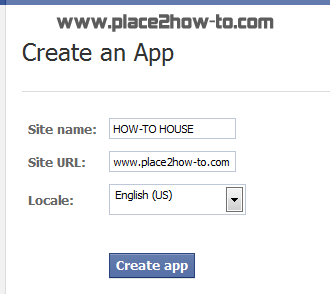
1. Visit Facebook Developer Page. Enter your blog name, URL and click on Create application.


2. After that, copy the APP ID.


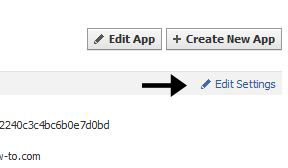
3. Then, go to Edit Setting


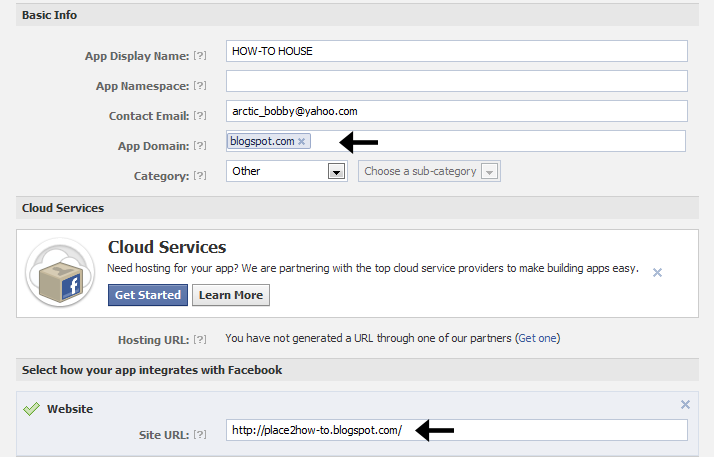
4. If you using blogspot, follow below instruction,


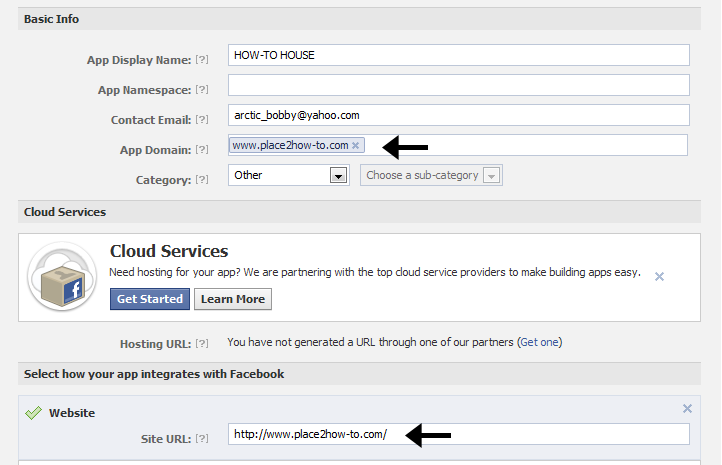
5. But if you using other domain like .com, follow instruction below,


6. Save your App.


ADD FACEBOOK COMMENT BOX

1. Go To Blogger >> Design ->> Edit HTML

2. Check the "Expand Widget Templates" box


3. Search for <html and just after it add this code,

xmlns:fb='http://www.facebook.com/2008/fbml'

4. Now search (Ctrl+F) for,
<body>

5. Just after it, add the below code,
<div id='fb-root'/>
<script>
    window.fbAsyncInit = function() {
    FB.init({
      appId  : &#39;YOUR_APP_ID&#39;,
      status : true, // check login status
        cookie : true, // enable cookies to allow the server to access the   session
      xfbml  : true  // parse XFBML
    });
  };
    (function() {
    var e = document.createElement(&#39;script&#39;);
      e.src = document.location.protocol     &#39;//connect.facebook.net/en_US/all.js&#39;;
    e.async = true;
      document.getElementById(&#39;fb-root&#39;).appendChild(e);
    }());
</script>

6. Change YOUR_APP_ID with your App ID number.

7. And then, search (Ctrl+F) </head> and just above it paste the below code,
<meta expr:content='data:blog.pageTitle' property='og:title'/>
<meta expr:content='data:blog.url' property='og:url'/>
<meta content='YOUR BLOG NAME' property='og:site_name'/>
<meta content='BLOG-LOGO-IMAGE-LINK' property='og:image'/>
<meta content='YOUR_APP_ID' property='fb:app_id'/>
<meta content='http://www.facebook.com/YOUR _FACEBOOK_USERNAME' property='fb:admins'/>
<meta content='article' property='og:type'/>

Replace the red code with your details.

8. Now, search (Ctrl+F) for this ;
<b:includable id='comment-form' var='post'>

9. After it paste the code given below,
<b:if cond='data:blog.pageType == &quot;item&quot;'>
<div style='padding:0px 0px 0px 0px; margin:0px 0px 0px 0px;'><script src='http://connect.facebook.net/en_US/all.js#xfbml=1'/>
<div> <fb:comments  colorscheme='light' expr:href='data:post.url' expr:title='data:post.title' expr:xid='data:post.id' width='520'/></div>
</div>
</b:if>

If you want to use the dark scheme replace light with dark

To change the comments box width, change this value width='520'

#UPDATE
10. Search (Ctrl+F) <fb:comments

11. Replace it with,
<script src='http://connect.facebook.net/en_US/all.js#xfbml=1'/> <fb:comments migrated='1'
12. Save your template.


HIDE BLOGGER COMMENT

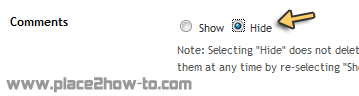
Now you need to hide default blogger commenting system. So navigate to Settings > Comments and select hide and save settings.


DONE! See the result.

With this, your previous blogger comment will be hidden.


Do you like it? Recommend it!

How To Enable Threaded Comment in Blogger Custom Template

Recently, blogger had update new feature which is threaded comment. If you use template from blogger you will see your blogger comment in threaded style. So, if you want to add threaded comment in costume template, just follow this instruction.


APPLY THREADED COMMENT IN COSTUME TEMPLATE
1. Go to Dashboard ->> Layout ->> Edit HTML

2. Search this code (Ctrl + F),
<b:if cond='data:blog.pageType == &quot;item&quot;'>
  <b:include data='post' name='comments'/>
</b:if> 
#maybe this code will appear twice.

3.Replace it with this code,
<b:if cond='data:blog.pageType == &quot;static_page&quot;'>
<b:if cond='data:post.showThreadedComments'>
<b:include data='post' name='threaded_comments'/>
<b:else/>
<b:include data='post' name='comments'/>
</b:if>
</b:if>
<b:if cond='data:blog.pageType == &quot;item&quot;'>
<b:if cond='data:post.showThreadedComments'>
<b:include data='post' name='threaded_comments'/>
<b:else/>
<b:include data='post' name='comments'/>
</b:if>
</b:if>
#so replace the provided code twice.

4. Customize your threaded comment, search (Ctrl+F) this tag,

<b:includable id='threaded_comment_css'>
.
.
.
.
until </b:includable>

6. And then replace it with  this CSS [click].

7. Save your template. Refresh your blog to see the result.

Any problem, just leave your comment. :)

Add Recent Comment with Avatar Widget in Blogger

Recent Comments widget with Avatar for Blogger. Recently Blogger updated the Comments API for Threaded Comments on Blogger . That's how the Avatar of Commenter showed using the updated the Comments API. HOW-TO HOUSE also use this widget. Let's know how.


HOW TO INSTALL
1. Go to your Dashboard >> Design >> Page Element >> Add a Gadget.


2. Paste this code in.
<style type="text/css">
    ul.w2b_recent_comments{list-style:none;margin:0;padding:0;}
    .w2b_recent_comments li{background:none !important;margin:0 0 6px !important;padding:0 0 6px 0 !important;display:block;clear:both;overflow:hidden;list-style:none;}
    .w2b_recent_comments li .avatarImage{padding:3px;background:#fefefe;-webkit-box-shadow:0 1px 1px #ccc;-moz-box-shadow:0 1px 1px #ccc;box-shadow:0 1px 1px #ccc;float:left;margin:0 6px 0 0;position:relative;overflow:hidden;}
    .avatarRound{-webkit-border-radius:100px;-moz-border-radius:100px;border-radius:100px;}
    .w2b_recent_comments li img{padding:0px;position:relative;overflow:hidden;display:block;}
    .w2b_recent_comments li span{margin-top:4px;color: #666;display: block;font-size: 12px;font-style: italic;line-height: 1.4;}
</style>
<script type="text/javascript">
//<![CDATA[
    // Recent Comments Settings
    var
    numComments     = 5,
    showAvatar     = true,
    avatarSize     = 50,
    roundAvatar    = true,
    characters     = 40,
    defaultAvatar     = "http://www.gravatar.com/avatar/?d=mm",
    hideCredits    = false;
//]]>
</script>
<script type="text/javascript" src="http://bloggerblogwidgets.googlecode.com/svn/trunk/w2b-recent-comments-w-gravatar.js"></script>
<script type="text/javascript" src="YOUR BLOG URL/feeds/comments/default?alt=json&callback=w2b_recent_comments&max-results=5"></script>

3. Replace the red code;

numComments     = 5,
• Number of the comment you wanna show

showAvatar     = true,
• set true tor show avatar, false to hide avatar

avatarSize     = 50,
• size px of the avatar

roundAvatar    = true,
true for rounded avatar, false for square avatar

characters     = 40,
• comment word

defaultAvatar     = "http://www.gravatar.com/avatar/?d=mm",
• Change the URL for new default avatar. Leave it if don't feel wanna change it.

YOUR BLOG URL
• Change it to your BLOG URL (necessary)

4. Save it. You're done.

or you can easily use this way2blogging widget generator


Enjoy guys! Leave your comment.

How To Add jQuery Scroll To Top Widget in Blogger

This widget is made your visitor to easier scroll to top of the page by click on it. It's nice and smooth. It only show up when you scroll the page. I also put this widget in HOW-TO HOUSE. So, let's add it now.

Add the Scroll to top jQuery script

1. Go to Dashboard ->> Design ->>; Edit HTML

2. Search this code (Ctrl + F), </head>

3. Then, paste the code below after </head>
<script src='https://ajax.googleapis.com/ajax/libs/jquery/1.6.1/jquery.min.js' type='text/javascript'/>
<style type='text/css'>#w2btoTop {display:none;text-decoration:none;position:fixed;bottom:10px;right:10px;overflow:hidden;width:51px;height:51px;border:none;text-indent:-999px;background:url(https://blogger.googleusercontent.com/img/b/R29vZ2xl/AVvXsEgIew84lw9wfOC__5ePUsgUnngc9cNyD8BSLHHOOH-AaPvvZ89wW116AVi_W_7vhjJuc1X2EzqiXr19G00-fHILyqFhGLUIJv3WFPXkWl0xSakspIF04tprrK9WMR7eW7LUR65PUlm8uyGJ/) no-repeat left top;}#w2btoTopHover {background:url(https://blogger.googleusercontent.com/img/b/R29vZ2xl/AVvXsEgIew84lw9wfOC__5ePUsgUnngc9cNyD8BSLHHOOH-AaPvvZ89wW116AVi_W_7vhjJuc1X2EzqiXr19G00-fHILyqFhGLUIJv3WFPXkWl0xSakspIF04tprrK9WMR7eW7LUR65PUlm8uyGJ/) no-repeat left -51px;width:51px;height:51px;display:block;overflow:hidden;float:left;opacity: 0;-moz-opacity: 0;filter:alpha(opacity=0);}#w2btoTop:active, #w2btoTop:focus {outline:none;}</style><script src='http://bloggerblogwidgets.googlecode.com/files/w2b_jquery.ui.totop.js' type='text/javascript'/><script type='text/javascript'>$(document).ready(function(){ $().UItoTop({ easingType: &#39;easeOutCubic&#39; }); }); </script> 

4. Save your template.

Refresh your blog to see the result. Finish!

Add IP Address Widget in Blogger

With this widget, you can show your visitor ip address, operating system, browser, and country. This is cool widget to make your visitor know what is their ip address and some other information. Let's add it.


STEPS
1. Go to your Dashboard >> Design >> Page Element >> Add a Gadget.


2. Paste this code in.
<!--Ip Address Widget Starts--><span style="display: block; text-align: center;"><a href="http://all-blogger-tools.blogspot.com/"><img alt="IP widget" border="0" height="125" src="http://www.wieistmeineip.de/ip-address/" width="125" /></a><br /> </span><!--Ip Address Widget Ends-->

3. Save. Done!

Refresh your blog to see the result.

It will something like this:

IP widget

How To Add Flash Animated Label Tags Cloud in Blogger


Blogger has a Labels tag widget to show your category of entries. This hack will show your labels tag in flash animated. Displaying animated cloud is a cool way of showing your tags in a limited space. Let's do it!

1. Go to Dashboard ->> Design ->> Edit HTML

2. Search this code (Ctrl + F),
<b:section class='sidebar' id='sidebar' preferred='yes'> 

3. Then, paste the code below after <b:section class='sidebar' id='sidebar' preferred='yes'> tag.
 <b:widget id='Label99' locked='false' title='Labels' type='Label'><b:includable id='main'><b:if cond='data:title'><h2><data:title/></h2></b:if><div class='widget-content'><script src='http://halotemplates.s3.amazonaws.com/wp-cumulus-example/swfobject.js' type='text/javascript'/><div id='flashcontent'></div><script type='text/javascript'>var so = new SWFObject(&quot;http://halotemplates.s3.amazonaws.com/wp-cumulus-example/tagcloud.swf&quot;, &quot;tagcloud&quot;, &quot;240&quot;, &quot;300&quot;, &quot;7&quot;, &quot;#ffffff&quot;);// uncomment next line to enable transparency//so.addParam(&quot;wmode&quot;, &quot;transparent&quot;);so.addVariable(&quot;tcolor&quot;, &quot;0x333333&quot;);so.addVariable(&quot;mode&quot;, &quot;tags&quot;);so.addVariable(&quot;distr&quot;, &quot;true&quot;);so.addVariable(&quot;tspeed&quot;, &quot;100&quot;);so.addVariable(&quot;tagcloud&quot;, &quot;<tags><b:loop values='data:labels' var='label'><a expr:href='data:label.url' style='12'><data:label.name/></a></b:loop></tags>&quot;);so.addParam(&quot;allowScriptAccess&quot;, &quot;always&quot;);so.write(&quot;flashcontent&quot;);</script><b:include name='quickedit'/></div></b:includable></b:widget>

4. Save your template.

Refresh your blog to see the result. Finish!

Leave your comment friends! :)

How To Stop Google Photo Indexing in Blogger

You can easily prevent Google from indexing  photo from your blog by doing below steps. Let's know how.

1. Go to Dashboard ->> Layout ->> Edit HTML

2.
Search this code (Ctrl + F), <head>

3. Copy below code and paste it after the
<head> tag .

<meta content='noimageindex' name='robots'/>

4. Save template. Finish.

Yeah!

How To Create Spinning Popular Post Widget in Blogger

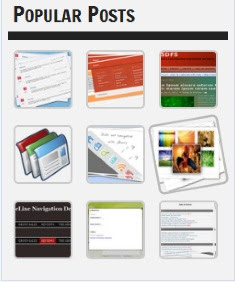
Yes. It is very nice effect to have to your Popular Post widget. Whwn you hover your cursor to the Post, the image will zooming anda spinning. You can have it by follow this steps.


SEE DEMO

1. Go to Dashboard ->> Design ->> Edit HTML

2.
Search this code (Ctrl + F), ]]></b:skin>

3. Copy below code and paste it just after
]]></b:skin> tag,
<style type='text/css'>
.PopularPosts ul li {background: none repeat scroll 0 0 transparent;float: left;list-style: none outside none;margin: 5px !important;padding: 0 !important;}
.PopularPosts ul li img {padding:0;-moz-border-radius: 5px;-webkit-border-radius: 5px;border-radius: 5px;-webkit-transition: all 0.3s ease;-moz-transition: all 0.3s ease;transition: all 0.3s ease;border: 2px solid #CCC;height: 80px;width: 80px;}
.PopularPosts ul li img:hover {border:2px solid #BBB;-moz-transform: scale(1.2) rotate(-1090deg) ;-webkit-transform: scale(1.2) rotate(-1090deg) ;-o-transform: scale(1.2) rotate(-1090deg) ;-ms-transform: scale(1.2) rotate(-1090deg) ;transform: scale(1.2) rotate(-1090deg) ;}
</style>
Note: Make sure you add Popular Posts widget to your blogger sidebar. 

4. Now save your template,

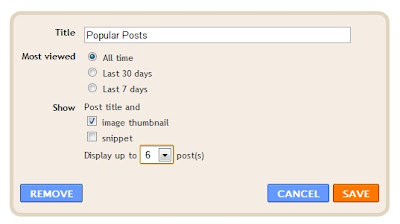
5. Edit your Popular Posts widget setting into something like this...


6. Save it.


Refresh your blog to see the result. Cool huh? Good job!


Leave your comment!