Showing posts with label Smartphone. Show all posts

How To Get the Camera App New Moto X on Samsung Galaxy Note 2

The new Moto X is still a couple of weeks from being released here in the United States, but that doesn't mean we can't play around with a few of its cool features. The camera shows off a minimalist and gesture-based user interface, something that many have wished for in a camera app, and today I'm going to show you how to get it on your Samsung Galaxy Note 2.

VIDEO GUIDE


Step 1: Enable Unknown Sources
This app isn't available on Google Play, so you'll need to have Unknown sources checked on your device. Enable it by going to Menu -> Settings -> Security and checking it.

Step 2: Install the Moto X Camera
Use this link or this link (from wolfboy1984 on XDA) to download the APK of the Moto X Camera. Once downloaded, click on it in the Noitfication tray and Verify and install.

Step 3: Open the Camera
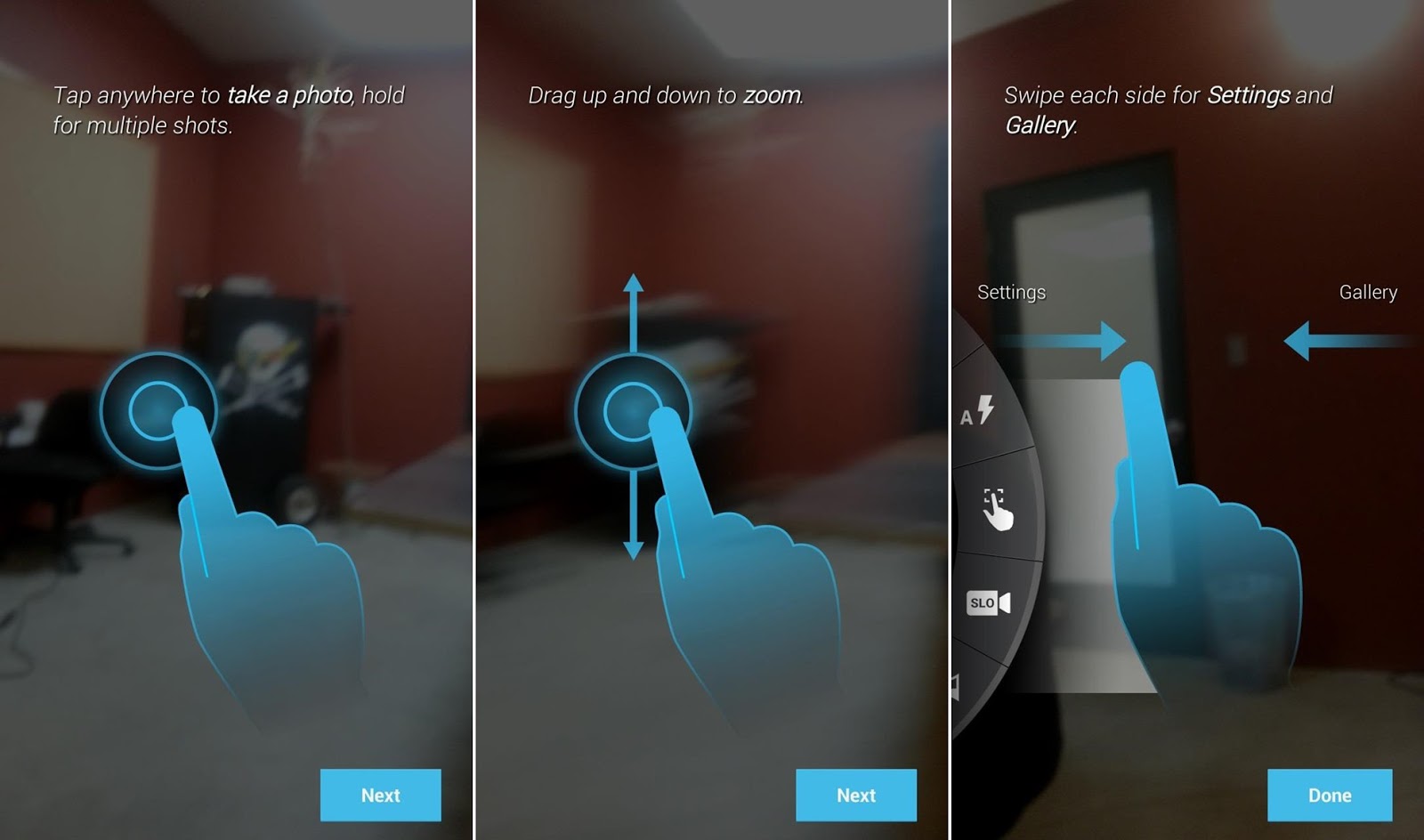
The Moto X Camera will not replace your stock camera, so you'll have two camera icons on your Note 2. When you open the Moto X Camera for the first time, you'll be taken through a quick tutorial on a few of the features.

Snapping Photos
If you want to take a photo, tap anywhere (as you would with any other camera). If you want to take multiple shots, hold down on the screen.

Settings & Gallery
If you want to check out the settings (flash, HDR, etc.), you can swipe right from the left side of the screen. If you want to see your gallery of photos, swipe left from the right side of the screen.

What You Need to Know
If you do check out the settings, be warned that not all of the functions will work, seeing as the leak is an early rip of the fully functional camera. A few of the features that don't work at the moment are:
• Double-flick wrist gesture (but you can use Osas's guide to get this using another app)
• HDR is disabled
• Slow-Motion is disabled
• Panorama mode crashes sometimes


With that being said, everything else works great. In the future, the APK might get updated so that all the features can work, so stay updated at this XDA Developers thread.

How To Download Youtube Videos from Android Device

While you watching Youtube video, suddenly internet connection going slow and interfere your fun time watching video. It's keep buffering and makes you frustrated. So, to watch the video smoothly, just download it to your android device. This video teaches you what is the best youtube video downloader for Android and how to download youtube videos with it on your Android.

VIDEO GUIDE

Related Ads:
Enjoy your video! :D

How To Mirror Samsung Galaxy S4 on your TV


You have a Samsung Galaxy S4? Want to watch movies or share files to a larger TV screen ? It is very simple. And, as more developers support this option, mirroring can even enable you to play games on your TV while your phone acts as a controller. The S4 offers a few ways to mirror your phone's screen (not just media) onto your TV, so that whatever you see on your phone is what appears on the TV.  Depending on which accessory you use, the setup can be wired or wireless, with each solution offering its own unique benefits. Find out which scenario suits you best.

# 1: Wired
You will need, MHL Cable to HDMI Cable

# 2: Wireless
You will need, Samsung AllShare Cast Dongle

VIDEO GUIDE

Related Ads:
This method also work with other Samsung mobile, Galaxy Note 2, Galaxy S3 etc.But make sure tu use right MHL to HDMI cable for each model.

Top 10 Android Hidden Codes for Smart Phones Revealed

Most of the Android user are unfamiliar with this codes. Most of the did not know about this hidden codes. I guess, it is not important for them to know. But for the user with high curiosity, they love to know this. Here are the codes:

» IMEI Number *#06#

» Test the touch screen *#*#2664#*#*

» Phone information, usage data & battery information *#*#4636#*#*

» Camera info - Mega pixel & zoom capacity *#*#34971539#*#*

» Immediate backup of videos, songs & images *#*#273282*255*663282*#*#*

» Full information about software and hardware *#12580*369#

» Test back light or vibration *#*#0842#*#*

» Control USB logging *#872564#

» Format your smartphone *2767*3855#

» Diagnostic configuration *#9090#

Some might work, some might not work. It depends on your android mobile. Just have fun! :)

How To Cut SIM Card To Micro SIM or Nano SIM


This video teaches viewers how to cut a SIM card from a standard (Mini SIM) format down to either a Micro SIM (For the NExus 4 etc.) or Nano SIM (for the new iPhone 5). You can also use a pre-configured SIM cutter like the one linked above if you're uncomfortable cutting your own SIM card using scissors. Make sure you use a sharp scissor. Follow this video guide.


Download and print this template - http://goo.gl/8rZR3H

Don't forget to share this tutorial to your friends!

How To Enable Developer Options in Android 4.2 Jelly Bean

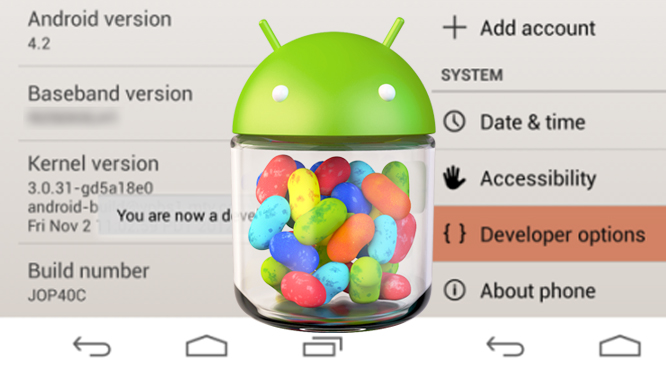
If you have gotten an Android 4.2 Jelly Bean device, you may have noticed that the “Developer Options” Menu Item is missing. In actual fact, it is hidden. Yes, Google has hidden the feature in the latest version of Android 4.2. To some extent, the move makes sense because the typical user may not need to know about this option. In fact, for the unacquainted, this option can be more confusing than helpful. Hence, the hiding of this option.


To restore this “Developer Mode” option
1. Go to Settings, and select “About Phone”

2. Select “Build Number” option at the end of the scroll list items.

3. Now, tap on the “Build Number” option repeatedly.

4. On your third tap, you would likely going to see a message saying that you only have 4 more taps to go to become a developer.

5. So you just continue tapping 4 more times; you will need 7 taps.

6. By your seventh tap, you will get the ‘Developer Mode’ activated – the message “You are now a developer!” is shown.

7. Navigate back to the “Setting” page on your device. If you have done it right, you should see “Developer Option” menu item inside the “Settings”.

8. Select the Developer Options. Check USB debugging and then OK.

VIDEO HOW TO ENABLE DEVELOPER OPTIONS IN ANDROID 4.2 JB

Finish!

How to Backup Contacts in Your Android Phone

You wanna change to a new phone? or switching it with other android but want to keep your contacts without to re-write it on paper. This will help you to make your job easier. Just follow the tutorial:

STEPS:
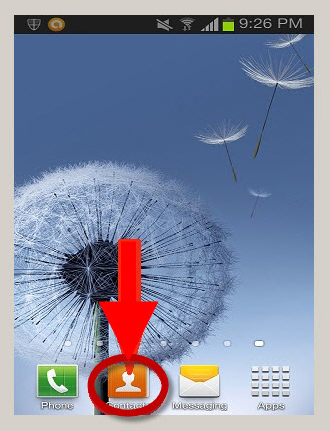
1. Open your Contacts from your Android phone.


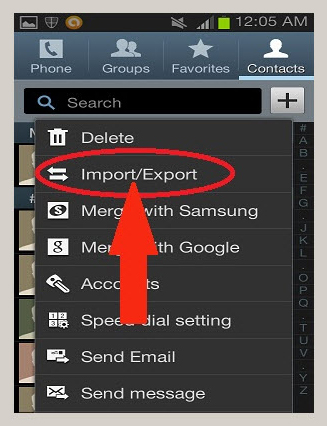
2. Press the Menu button and then select the More option from the list of menu items.

3. Select the Import/Export option to proceed.


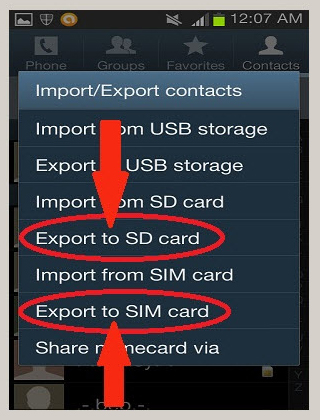
4. Now, after clicking on Import/Export, you can Select your choice of Export to either SIM card or to SD card.


Now, your contacts already back up. To have it back in your new phone, just Import it to your Phone Contacts.

DONE!

How To Root HDC Galaxy S3 Pro

If you have a phone Samsung Galaxy S3 clone for the HDC Galaxy S3 Pro, you can refer to this video for doing root on your phone. It is very simple and easy. Check it out!


Easy right? If you live in Malaysia and would like to get this phone, purchase it here. Also Galaxy Note II, here.

Enjoy ~