How To Add Rollover Social Icons in Blogger

This social icon widget include Facebook, Twitter and RSS. When you hover your cursor into the icon,it will rollover. Now, you can add it to your blog. Let's know how.


STEPS
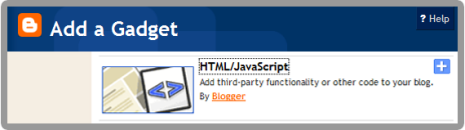
1. Go to your Dashboard >> Design >> Page Element >> Add a Gadget.
 

2. Paste this code in.
<center>
<a href=http://www.facebook.com/username target="_blank" onmouseover= "if (document.images) document.facebook.src= 'https://blogger.googleusercontent.com/img/b/R29vZ2xl/AVvXsEiy1PxqwBAjpPw19wP5bqh4njwksJi9ahdH_BoMvdJ0T5YdwIE9CVEUA9vX_Of6u4CC5gaQzq2aEzkZWF1jh-_DSs4uZsduQ-x8c750bBL5LH8JIYY1mXykaeipRnvzt8eJendMYSVpOJIJ/s1600/facebook.png';" onmouseout= "if (document.images) document.facebook.src= 'https://blogger.googleusercontent.com/img/b/R29vZ2xl/AVvXsEhcvVjjFztelfqt53Bc1BQtVvreJUFnYz74t_OBJIJW9ZFh8Jx7YhNzILQ84R_rNuaOj4BweHdlpGtw37TPdxqVSZ75uTBsdS-Y8RnZDJwenmtJWAPnmAK7TjhTsiaFPaxYHeB30h1Zb887/s1600/facebook.png';"><img src="https://blogger.googleusercontent.com/img/b/R29vZ2xl/AVvXsEhcvVjjFztelfqt53Bc1BQtVvreJUFnYz74t_OBJIJW9ZFh8Jx7YhNzILQ84R_rNuaOj4BweHdlpGtw37TPdxqVSZ75uTBsdS-Y8RnZDJwenmtJWAPnmAK7TjhTsiaFPaxYHeB30h1Zb887/s1600/facebook.png" name="facebook" border="0" width="64" height="82"/></a><a target="_blank" href=http://twitter.com/username onmouseover= "if (document.images) document.twitter.src= 'https://blogger.googleusercontent.com/img/b/R29vZ2xl/AVvXsEgLwLJs9KTf37sfSMAaGdE4Nkkdzt7PeARhwlx54irqoRTnmkVw5otM7Fn8_00Tx2uc6s8lrKhZZAwXWNmdVXbN298RH6d8dGhShyVImtCCQ3Z2xCMMQWow_uXNHc2EIwmHxl5ht9TtxYpJ/s320/twitter.png';" onmouseout= "if (document.images) document.twitter.src= 'https://blogger.googleusercontent.com/img/b/R29vZ2xl/AVvXsEhkEYE2jB0N7NpzG4wtNE6ZqhcKWF8hvk4O2BcKIBA96DgisQ5HMmZa9z8h7V0EQbPaIJWBfHjVvpAISSicpdsGeLfFbkUdews8Zl_8wnV8oSpMXBmrQKYuve-fVOvQNVurrzPw-ybtmSiK/s1600/twitter.png';"><img src="https://blogger.googleusercontent.com/img/b/R29vZ2xl/AVvXsEhkEYE2jB0N7NpzG4wtNE6ZqhcKWF8hvk4O2BcKIBA96DgisQ5HMmZa9z8h7V0EQbPaIJWBfHjVvpAISSicpdsGeLfFbkUdews8Zl_8wnV8oSpMXBmrQKYuve-fVOvQNVurrzPw-ybtmSiK/s1600/twitter.png" name="twitter" border="0" width="64" height="82"/></a><a href=http://feeds.feedburner.com/username target="_blank" onmouseover= "if (document.images) document.rss.src= 'https://blogger.googleusercontent.com/img/b/R29vZ2xl/AVvXsEjCNPyNGcJm7o3OZexya2JC55pawjfwMIpbS7WQ2CskuOcTB8t4B2eO5nc4DsqVdWS3sPfLC3kw0FKe7m1iRff4fHOJBf70kw0N1OWiuSk5Gbgnk_hDZumsjR_ELm-85mVYfupnIg19H1sT/s1600/rss.png';" onmouseout= "if (document.images) document.rss.src= 'https://blogger.googleusercontent.com/img/b/R29vZ2xl/AVvXsEjmKtVnlWvGUIsKdpDsFiMk6NidzdZzonwd-3BxKcCOE4XkuDHAvAP6bLMCVYCjf-GjiwiZlgj2wB20hItpbCB1oZEEf495gypDCFfwJG8EYYjvNR3MD1pkBl6VJ-u0ekxiqWRi2NrtomF2/s1600/rss.png';"><img src="https://blogger.googleusercontent.com/img/b/R29vZ2xl/AVvXsEjmKtVnlWvGUIsKdpDsFiMk6NidzdZzonwd-3BxKcCOE4XkuDHAvAP6bLMCVYCjf-GjiwiZlgj2wB20hItpbCB1oZEEf495gypDCFfwJG8EYYjvNR3MD1pkBl6VJ-u0ekxiqWRi2NrtomF2/s1600/rss.png" name="rss" border="0" width="64" height="82"/></a>
</center>

3. Replace the red code with your Facebook, Twitter and RSS URL.

4. Save. Finish! You're done.


Enjoy your rollover social icon guys! :)

How To Add jQuery Scroll To Top Widget in Blogger

This widget is made your visitor to easier scroll to top of the page by click on it. It's nice and smooth. It only show up when you scroll the page. I also put this widget in HOW-TO HOUSE. So, let's add it now.

Add the Scroll to top jQuery script

1. Go to Dashboard ->> Design ->>; Edit HTML

2. Search this code (Ctrl + F), </head>

3. Then, paste the code below after </head>
<script src='https://ajax.googleapis.com/ajax/libs/jquery/1.6.1/jquery.min.js' type='text/javascript'/>
<style type='text/css'>#w2btoTop {display:none;text-decoration:none;position:fixed;bottom:10px;right:10px;overflow:hidden;width:51px;height:51px;border:none;text-indent:-999px;background:url(https://blogger.googleusercontent.com/img/b/R29vZ2xl/AVvXsEgIew84lw9wfOC__5ePUsgUnngc9cNyD8BSLHHOOH-AaPvvZ89wW116AVi_W_7vhjJuc1X2EzqiXr19G00-fHILyqFhGLUIJv3WFPXkWl0xSakspIF04tprrK9WMR7eW7LUR65PUlm8uyGJ/) no-repeat left top;}#w2btoTopHover {background:url(https://blogger.googleusercontent.com/img/b/R29vZ2xl/AVvXsEgIew84lw9wfOC__5ePUsgUnngc9cNyD8BSLHHOOH-AaPvvZ89wW116AVi_W_7vhjJuc1X2EzqiXr19G00-fHILyqFhGLUIJv3WFPXkWl0xSakspIF04tprrK9WMR7eW7LUR65PUlm8uyGJ/) no-repeat left -51px;width:51px;height:51px;display:block;overflow:hidden;float:left;opacity: 0;-moz-opacity: 0;filter:alpha(opacity=0);}#w2btoTop:active, #w2btoTop:focus {outline:none;}</style><script src='http://bloggerblogwidgets.googlecode.com/files/w2b_jquery.ui.totop.js' type='text/javascript'/><script type='text/javascript'>$(document).ready(function(){ $().UItoTop({ easingType: &#39;easeOutCubic&#39; }); }); </script> 

4. Save your template.

Refresh your blog to see the result. Finish!

Protest on SOPA: Internet Blackout

The sites which protest against the SOPA (Stop Online Piracy Act). What is SOPA about? Read here. This sites blackout their site. The sites is included Wikipedia, Google, Firefox, Twitpic, Wordpress, Flickr, OpenDNS.


The online SOPA/PIPA protest (internet blackout) ends....for now.

The Wikipedia blackout is over — and you have spoken.

More than 162 million people saw our message asking if you could imagine a world without free knowledge. You said no. You shut down Congress’s switchboards. You melted their servers. From all around the world your messages dominated social media and the news. Millions of people have spoken in defense of a free and open Internet. For us, this is not about money. It’s about knowledge. As a community of authors, editors, photographers, and programmers, we invite everyone to share and build upon our work.

Our mission is to empower and engage people to document the sum of all human knowledge, and to make it available to all humanity, in perpetuity. We care passionately about the rights of authors, because we are authors. SOPA and PIPA are not dead: they are waiting in the shadows. What’s happened in the last 24 hours, though, is extraordinary. The internet has enabled creativity, knowledge, and innovation to shine, and as Wikipedia went dark, you've directed your energy to protecting it.

We’re turning the lights back on. Help us keep them shining brightly.

[source]

10 Reasons To Earn Money with FANBOX


Click on the image above for 10 Reasons to earn money with Fanbox. It's awesome. Fanbox is the best.

+ Any question? Leave your comment. (^_^)

Add IP Address Widget in Blogger

With this widget, you can show your visitor ip address, operating system, browser, and country. This is cool widget to make your visitor know what is their ip address and some other information. Let's add it.


STEPS
1. Go to your Dashboard >> Design >> Page Element >> Add a Gadget.


2. Paste this code in.
<!--Ip Address Widget Starts--><span style="display: block; text-align: center;"><a href="http://all-blogger-tools.blogspot.com/"><img alt="IP widget" border="0" height="125" src="http://www.wieistmeineip.de/ip-address/" width="125" /></a><br /> </span><!--Ip Address Widget Ends-->

3. Save. Done!

Refresh your blog to see the result.

It will something like this:

IP widget

How To Add Flash Animated Label Tags Cloud in Blogger


Blogger has a Labels tag widget to show your category of entries. This hack will show your labels tag in flash animated. Displaying animated cloud is a cool way of showing your tags in a limited space. Let's do it!

1. Go to Dashboard ->> Design ->> Edit HTML

2. Search this code (Ctrl + F),
<b:section class='sidebar' id='sidebar' preferred='yes'> 

3. Then, paste the code below after <b:section class='sidebar' id='sidebar' preferred='yes'> tag.
 <b:widget id='Label99' locked='false' title='Labels' type='Label'><b:includable id='main'><b:if cond='data:title'><h2><data:title/></h2></b:if><div class='widget-content'><script src='http://halotemplates.s3.amazonaws.com/wp-cumulus-example/swfobject.js' type='text/javascript'/><div id='flashcontent'></div><script type='text/javascript'>var so = new SWFObject(&quot;http://halotemplates.s3.amazonaws.com/wp-cumulus-example/tagcloud.swf&quot;, &quot;tagcloud&quot;, &quot;240&quot;, &quot;300&quot;, &quot;7&quot;, &quot;#ffffff&quot;);// uncomment next line to enable transparency//so.addParam(&quot;wmode&quot;, &quot;transparent&quot;);so.addVariable(&quot;tcolor&quot;, &quot;0x333333&quot;);so.addVariable(&quot;mode&quot;, &quot;tags&quot;);so.addVariable(&quot;distr&quot;, &quot;true&quot;);so.addVariable(&quot;tspeed&quot;, &quot;100&quot;);so.addVariable(&quot;tagcloud&quot;, &quot;<tags><b:loop values='data:labels' var='label'><a expr:href='data:label.url' style='12'><data:label.name/></a></b:loop></tags>&quot;);so.addParam(&quot;allowScriptAccess&quot;, &quot;always&quot;);so.write(&quot;flashcontent&quot;);</script><b:include name='quickedit'/></div></b:includable></b:widget>

4. Save your template.

Refresh your blog to see the result. Finish!

Leave your comment friends! :)

How To Stop Google Photo Indexing in Blogger

You can easily prevent Google from indexing  photo from your blog by doing below steps. Let's know how.

1. Go to Dashboard ->> Layout ->> Edit HTML

2.
Search this code (Ctrl + F), <head>

3. Copy below code and paste it after the
<head> tag .

<meta content='noimageindex' name='robots'/>

4. Save template. Finish.

Yeah!

How To Create Spinning Popular Post Widget in Blogger

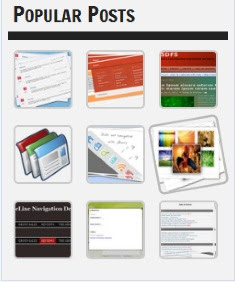
Yes. It is very nice effect to have to your Popular Post widget. Whwn you hover your cursor to the Post, the image will zooming anda spinning. You can have it by follow this steps.


SEE DEMO

1. Go to Dashboard ->> Design ->> Edit HTML

2.
Search this code (Ctrl + F), ]]></b:skin>

3. Copy below code and paste it just after
]]></b:skin> tag,
<style type='text/css'>
.PopularPosts ul li {background: none repeat scroll 0 0 transparent;float: left;list-style: none outside none;margin: 5px !important;padding: 0 !important;}
.PopularPosts ul li img {padding:0;-moz-border-radius: 5px;-webkit-border-radius: 5px;border-radius: 5px;-webkit-transition: all 0.3s ease;-moz-transition: all 0.3s ease;transition: all 0.3s ease;border: 2px solid #CCC;height: 80px;width: 80px;}
.PopularPosts ul li img:hover {border:2px solid #BBB;-moz-transform: scale(1.2) rotate(-1090deg) ;-webkit-transform: scale(1.2) rotate(-1090deg) ;-o-transform: scale(1.2) rotate(-1090deg) ;-ms-transform: scale(1.2) rotate(-1090deg) ;transform: scale(1.2) rotate(-1090deg) ;}
</style>
Note: Make sure you add Popular Posts widget to your blogger sidebar. 

4. Now save your template,

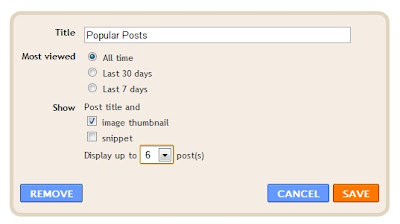
5. Edit your Popular Posts widget setting into something like this...


6. Save it.


Refresh your blog to see the result. Cool huh? Good job!


Leave your comment!

How To Create Google Plus Fan Page For Blogger

Google Plus has launch a Google Plus Fan Page. It's similar to Facebook Fan Page. You can use Google Plus Fan Page for business to promote your products, events, etc. This is how to create and add it into your blog.

Create Google + Fan Page
1. First, go to this page, click on the Product or Brand.

2. Enter the Blog Title and URL, select Category

3. Tick the Agree Page Terms check-box and Click on Create Button.

4. Enter the Tagline and Upload a Profile photo.

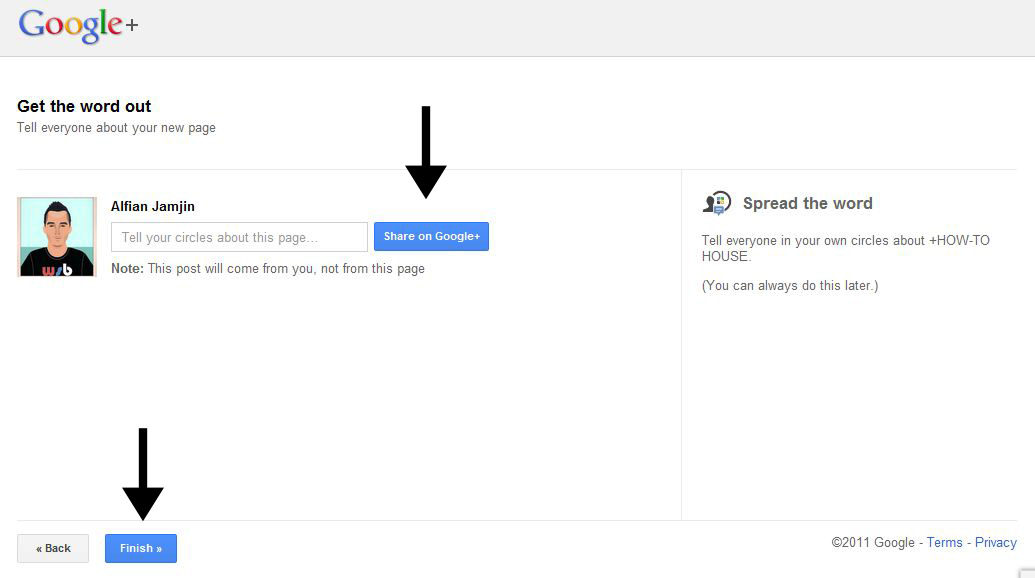
6. You're page is almost done, click the Share on Google+ button and Finally Click the Finish button.


Add Fan Page Badge to your Blog
Grow your fans or follower by adding this badge to your blog.

1. Go to Get Started page, click the get the Badge link.

2. Choose a Style of Badge and Language (Leave the Advanced options to Default).


3. There is 2 code to add into your blog.
4. Go to Blogger Dashboard > Design > Edit HTML
5. Search for the </head> tag, add the Code #1 section before it.
6. Save your template.
7. Then, add the Code2 section in HTML/JavaScript gadget and place where you want the badge to be appear.

Finish. That's it! Enjoy! Leave your comment yeah!

How To Change Linkwithin "You might also like" Message in Blooger

Do you have Linkwithin Related post widget? You want to change the Linkwithin message to another message? Sure you can. Only add some code into it. Let's know how.


Add the red code, above your Linkwithin code:
<script>linkwithin_text='YOUR NEW LINKWITHIN MESSAGE :'</script>
YOUR LINKWITHIN CODE

Yeah, that's all you need. Refresh to see the result.

Hope you like it.