How To Embed Youtube Video From Start to End at the Specific Time

There would be many a situation where you may want to just embed a Youtube video from one point to another and not the whole video. You may want to direct your readers or viewers to a certain clip of a particular video and not the whole video. You can easily chop or trim a Youtube video by making a small modification to the url. Youtube itself provides an easy way to start the video from a particular point, but the below method would help you to not only start the video but also stop at a certain point. Since this method is free and you need not download anything and is very simple to follow, let's do this!

VIDEO GUIDE

Go to this link, Tech Tips For All

If you want to add this link in PowerPoint, just copy the above link and follow the below video.  This is also a working example for the above form. Watch the video guide below.


Yeah! It's just that easy. Leave a commenet, kindly appreciate it! :)

How To Block Yourself from Being 'Seen' by Facebook Friends

Facebook recently added some features to its Messages, Chat and Groups that a lot of people have found to be somewhat sketchy. 

In Groups, anyone with permission to view a post can hover over it and see a list of other people who have read it. This could actually be functional if you're using it to coordinate meeting times or sharing documents for work. But when it comes to Messages and Chat, it gets a little creepy. Not only will people always know if you've read a message or not, "you’ll now see the name of town or city from which a message was sent in-line if your conversation partners have location enabled."


If you don't want your Facebook Messenger to have a built-in white lie detector, try Chat Undetected. It's a browser extension that works across Chrome, Firefox, Internet Explorer and Safari. All you have to do is install it and it disables read receipts so you can stay incognito when you want to be.

This extension is made by Crossride.com

How To Bypass Password Login Screen on Windows 8

It's good to password-protect your PC to make sure that your personal files, folders, and important documents are safe and can't be modified without your permission. Though, entering the password all of the time before using your computer might frustrate you.  Here, you will be find an easy way to remove passwords in such a way that Windows will automatically get to the desktop without asking you to enter the system password. Though, you can restore it back whenever you feel that your system is not safe anymore.


VIDEO GUIDE

You can follow the same steps to bypass password screen on previous version of Windows too, not just Windows 8. Enjoy!

How To Disable Intro, Replay, Loading Circle Color and Referee Strictness in PES2013

Some of the gamer like to watch replays after scoring goal because they enjoy it or to annoyed their friends. But for some people it is wasting time, it is better to be save some time and to do some other work. We've got all you need. Now you can disable PES2013 Intro, Replay, Loading Circle Color and even the referee strictness. Just get this tool.


Downlod the tool here - Replay Disabler by Cabry


HOW TO USE
1. Use a clean *nodvd* .exe file

2. Open your pes2013.exe

3. Change the settings

4. Save the pes2013.exe

Done!

+credits: cabry & PesPatch

How To Cut SIM Card To Micro SIM or Nano SIM


This video teaches viewers how to cut a SIM card from a standard (Mini SIM) format down to either a Micro SIM (For the NExus 4 etc.) or Nano SIM (for the new iPhone 5). You can also use a pre-configured SIM cutter like the one linked above if you're uncomfortable cutting your own SIM card using scissors. Make sure you use a sharp scissor. Follow this video guide.


Download and print this template - http://goo.gl/8rZR3H

Don't forget to share this tutorial to your friends!

How To Enable Developer Options in Android 4.2 Jelly Bean

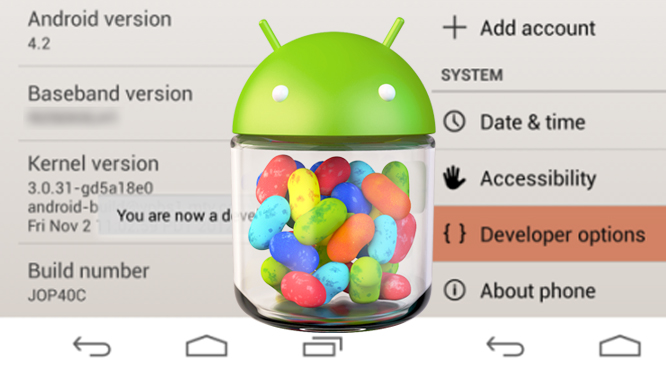
If you have gotten an Android 4.2 Jelly Bean device, you may have noticed that the “Developer Options” Menu Item is missing. In actual fact, it is hidden. Yes, Google has hidden the feature in the latest version of Android 4.2. To some extent, the move makes sense because the typical user may not need to know about this option. In fact, for the unacquainted, this option can be more confusing than helpful. Hence, the hiding of this option.


To restore this “Developer Mode” option
1. Go to Settings, and select “About Phone”

2. Select “Build Number” option at the end of the scroll list items.

3. Now, tap on the “Build Number” option repeatedly.

4. On your third tap, you would likely going to see a message saying that you only have 4 more taps to go to become a developer.

5. So you just continue tapping 4 more times; you will need 7 taps.

6. By your seventh tap, you will get the ‘Developer Mode’ activated – the message “You are now a developer!” is shown.

7. Navigate back to the “Setting” page on your device. If you have done it right, you should see “Developer Option” menu item inside the “Settings”.

8. Select the Developer Options. Check USB debugging and then OK.

VIDEO HOW TO ENABLE DEVELOPER OPTIONS IN ANDROID 4.2 JB

Finish!

How to Change Color of Clothing in Photoshop

Follow this easy tutorial how to change the color of a jacket in just two minutes. Apply this new photoshop tool to all your photo edits to turn dull colors into fresh, bright ones quickly and easily. Let's do it!


You've done it in just 2 minutes. Well done!

PES 2013 - Flick and Sombrero Tutorial

More skill, it is more fun. Let's learn flick and sombrero in PES2013.


Not all the player can do this trick, it depend on the ability stats. Have fun guys!

How To Bypass YouTube Age Restrictions on NSFW Videos

In some Youtube Videos, you can't watch it because of restriction. This may happen because of the content of the video is not suitable for every age to watch. Here is some easy trick to bypass it.


METHOD #1
If you want to stay on the official YouTube site, you can just remove the 'watch?' in the URL and replace the '=' sign with a '/'. For example:

youtube.com/watch?v=1223445
to.....
youtube.com/v/1223445

This bypasses the restriction and lets you go straight to watching the video without the age confirmation.


METHOD #2
If you don't mind being redirected to a different site, you can instead add "nsfw" in front of YouTube in the URL.

youtube.com/watch?v=1223445
to.....
nsfwyoutube.com/watch?v=1223445

This takes you to a site dedicated, as the name suggests, to letting you watch YouTube's NSFW side to your heart's content.

Now you can watch the NSFW video without any permission.

How to Backup Contacts in Your Android Phone

You wanna change to a new phone? or switching it with other android but want to keep your contacts without to re-write it on paper. This will help you to make your job easier. Just follow the tutorial:

STEPS:
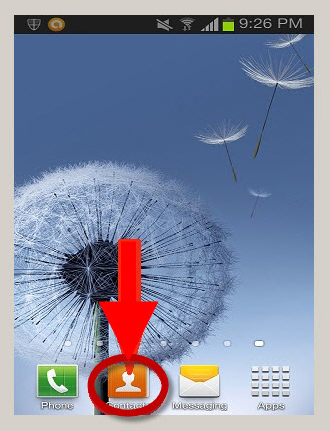
1. Open your Contacts from your Android phone.


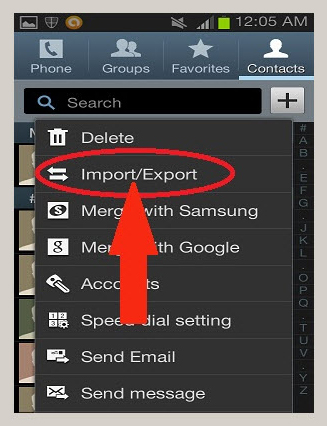
2. Press the Menu button and then select the More option from the list of menu items.

3. Select the Import/Export option to proceed.


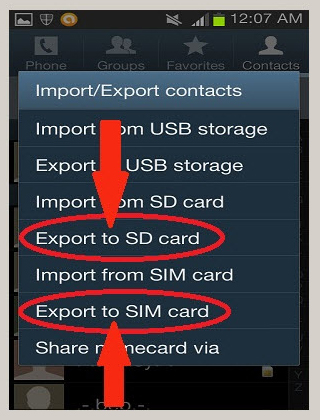
4. Now, after clicking on Import/Export, you can Select your choice of Export to either SIM card or to SD card.


Now, your contacts already back up. To have it back in your new phone, just Import it to your Phone Contacts.

DONE!