Showing posts with label Social Network. Show all posts

How To Embed Any Facebook Post on Website or Blog

Yep, now you can embed any Facebook post whether it's your post, friends posts, or from any facebook page post. Facebook has added a new “embedded posts” feature to help you embed any Facebook content – you can embed photographs, videos or even regular status updates – on another website or blog.

You can easily embed any image on your website or blog just like embedding Youtube videos. Example:

Once embedded, a post is like a little bit of Facebook living on your website. Visitors can like the post, and share it right from your blog.

But you post want to embed, the facebook account must enable the Embedded Posts functionality. However you still can embed any Facebook content on your website even if “Embedded Posts” are not officially available for that Facebook account. Here are the trick.

Use this provided code below. Just replace YOUR_URL_HERE with the facebook post permalink.
<div id="fb-root"></div>
<script>
(function(d, s, id) {
var js, fjs = d.getElementsByTagName(s)[0];
if (d.getElementById(id))
return;
js = d.createElement(s);
js.id = id;
js.src = "//connect.facebook.net/en_US/all.js#xfbml=1";
fjs.parentNode.insertBefore(js, fjs);
}(document, 'script', 'facebook-jssdk'));
</script>
<fb:post href="YOUR_URL_HERE"></fb:post>
 If you wisht to embed another Facebook post on the same web page, you don’t have to copy-paste the entire snippet. Just add a new <fb:post href="YOUR_URL_HERE"></fb:post>

VIDEO GUIDE

Embed your own facebook page content to your blog or website to widely promoting your products.

+credit: Labnol
+Share it to recommend it!

How To Embed Instagram Photos or Videos on a Website or Blog

Having trouble to embed Instagram images or videos on your blog? Embed code is not found everywhere. Now we will learn how to embed Instagram images and videos through this video. Got in done in 2 minutes. Start to promote your Instagram images and videos in your website or blog.

VIDEO GUIDE

Embed instagram images and videos easily.

How To Embed Youtube Video From Start to End at the Specific Time

There would be many a situation where you may want to just embed a Youtube video from one point to another and not the whole video. You may want to direct your readers or viewers to a certain clip of a particular video and not the whole video. You can easily chop or trim a Youtube video by making a small modification to the url. Youtube itself provides an easy way to start the video from a particular point, but the below method would help you to not only start the video but also stop at a certain point. Since this method is free and you need not download anything and is very simple to follow, let's do this!

VIDEO GUIDE

Go to this link, Tech Tips For All

If you want to add this link in PowerPoint, just copy the above link and follow the below video.  This is also a working example for the above form. Watch the video guide below.


Yeah! It's just that easy. Leave a commenet, kindly appreciate it! :)

How To Block Yourself from Being 'Seen' by Facebook Friends

Facebook recently added some features to its Messages, Chat and Groups that a lot of people have found to be somewhat sketchy. 

In Groups, anyone with permission to view a post can hover over it and see a list of other people who have read it. This could actually be functional if you're using it to coordinate meeting times or sharing documents for work. But when it comes to Messages and Chat, it gets a little creepy. Not only will people always know if you've read a message or not, "you’ll now see the name of town or city from which a message was sent in-line if your conversation partners have location enabled."


If you don't want your Facebook Messenger to have a built-in white lie detector, try Chat Undetected. It's a browser extension that works across Chrome, Firefox, Internet Explorer and Safari. All you have to do is install it and it disables read receipts so you can stay incognito when you want to be.

This extension is made by Crossride.com

How To Bypass YouTube Age Restrictions on NSFW Videos

In some Youtube Videos, you can't watch it because of restriction. This may happen because of the content of the video is not suitable for every age to watch. Here is some easy trick to bypass it.


METHOD #1
If you want to stay on the official YouTube site, you can just remove the 'watch?' in the URL and replace the '=' sign with a '/'. For example:

youtube.com/watch?v=1223445
to.....
youtube.com/v/1223445

This bypasses the restriction and lets you go straight to watching the video without the age confirmation.


METHOD #2
If you don't mind being redirected to a different site, you can instead add "nsfw" in front of YouTube in the URL.

youtube.com/watch?v=1223445
to.....
nsfwyoutube.com/watch?v=1223445

This takes you to a site dedicated, as the name suggests, to letting you watch YouTube's NSFW side to your heart's content.

Now you can watch the NSFW video without any permission.

How To Add Featured Video with Image Thumbnail and Channel Link in YouTube Channel

Most of the Youtube users must be aware of the latest feature in Youtube Annotation. This is most recent feature introduced with the new Youtube theme. This feature allows the user to put featured video with image thumbnail on their Youtube videos. For example, look at the last 10 seconds of this video, http://youtu.be/XUtt9l53INc.

This has been confirmed to be the Invideo Programming feature, just recently released to all users whose accounts are in Good Standing. 

It's definitely a new type of annotation; No word yet on where they come from, or how to activate them for your channel, but there is reason to believe they could be test annotations that are planned to be added to Youtube's new Bulk Annotation feature coming by the end of this year (which Youtube announced at Vidcon was a new feature being developed).  Now, there are two types of feature, video links and channel links.  The Channel links just pulls the channel avatar as the image, while the video links pull the default thumbnail of the video.

Click image to zoom

You can save and remove it anytime you want. This feature allows Youtube user to promote their videos widely. Youtube Thanks to the team for introducing new features that are very useful.

Click here for more details and click here to get started.

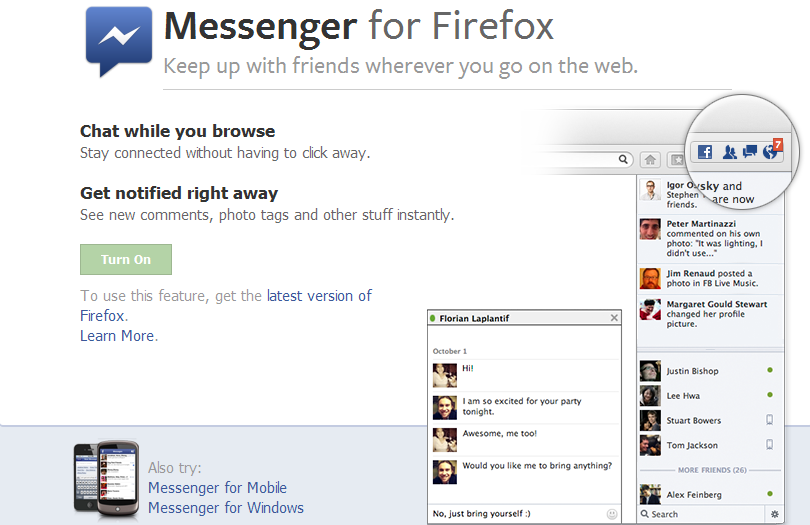
Facebook Messenger For Firefox - Chat Wherever You Go On The Web

To Firefox browser user, this one is special for you. Mozilla launched the latest features to Firefox 17, it's Facebook Messenger. Facebook Messenger for Firefox lets you keep up with friends wherever you go on the web!


Facebook Messenger for Firefox
»  To use this new feature, upgrade your Firefox browser or get it here -  Firefox version 17

»  Go to page Messenger for Firefox and click 'Turn On'.


No need to go to the Facebook tab or install messenger on your PC. Facebook Messenger for Firefox is more easier. Enjoy! :)

Don't forget to share with your friend.

Increase Your Facebook Pages Likes with AddMeFast

Facebook is second ranked the most popular website in the world. A vast network of facebook can be an effective form of marketing. To become a success full publisher you should have your own Facebook community page, it’s not only vital but play significant role in building traffic as well as the backlinks. But to get your Facebook page spread, 'like' is most needed. If more people 'like' your page, the more extensive marketing through the page. To get the 'like' not as easy you think also a bit difficult. You can ask friends, family, or friends of your friends but still not enough. So, you will need this few steps to increase your Facebook Page Like. Let's know how ...

AddMeFast
What is AddMeFast? AddMeFast is a website that provides services to increase facebook like page. Not only that, there are also services for other social media such as Youtube, Twitter, Google Plus, Pinterest and others. Is it a real likes? Yup, real human likes.

It is also very easy to use. Follow the following steps:

Step 1:
Just need to register here - AddMeFast. Then, verify your registration in your email inbox.


Step 2:
After registering and verifying your Email Address, login to your account. Then, add Facebook Page/Site that you want to get likes. You can add more than 1 site or page.


Type: Select 'Facebook Likes' if you want to increase Facebook Page likes. You can choose other type for other services.
Title: Enter the title of your page/site.
Site/Page URL: URL of your Facebook page or any link that you want to target for likes.
CPC: It's up to you. The more higher you bid, the faster likes you will receiver. Most recommended is between 5 - 10 points.

When everything done, Save Changes.

Step 3:
Now you have to like other pages to earn points. These points will help you to increase your likes the more you earn points, the extra like you will get. Following is the list of services that could earn you free points. Facebook Likes, Facebook Subscribers, Twitter Follow, Google Plus Circle, Google Plus one, YouTube Subscriber, YouTube Views, Pinterest Followers, Sound Cloud, Stumbleupon Followers etc.


Now, you have to collect points. More points, more Likes you can get. You can refer your friends earn 300 points for each friends.

Share/Like if you Like it! :)

How To Create Upside Down Text


Do you want your text upside down on Facebook? Who said writing upside down is difficult? It's really easy as ABC. This is the example:


ǝldɯɐxǝ

HOW TO MAKE UPSIDE DOWN TEXT

1. Go to this site:


2. Type the words that you want to put on Facebook, just copy-paste the word into Facebook.

3. Walla. Just like ABC. Done!

So, you can hide you word from your reader or friend from to be read directly.

How To Create Google Plus Fan Page For Blogger

Google Plus has launch a Google Plus Fan Page. It's similar to Facebook Fan Page. You can use Google Plus Fan Page for business to promote your products, events, etc. This is how to create and add it into your blog.

Create Google + Fan Page
1. First, go to this page, click on the Product or Brand.

2. Enter the Blog Title and URL, select Category

3. Tick the Agree Page Terms check-box and Click on Create Button.

4. Enter the Tagline and Upload a Profile photo.

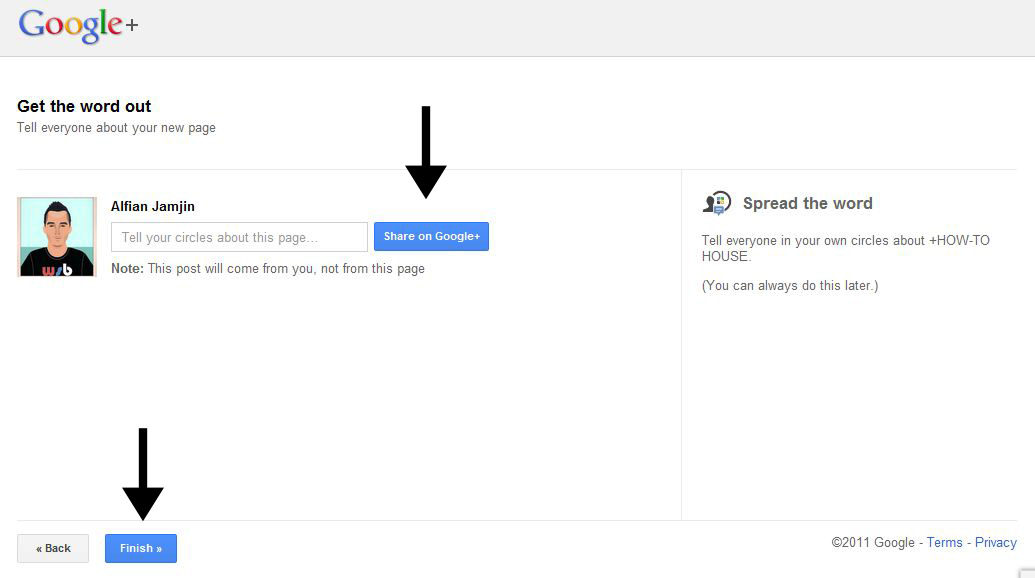
6. You're page is almost done, click the Share on Google+ button and Finally Click the Finish button.


Add Fan Page Badge to your Blog
Grow your fans or follower by adding this badge to your blog.

1. Go to Get Started page, click the get the Badge link.

2. Choose a Style of Badge and Language (Leave the Advanced options to Default).


3. There is 2 code to add into your blog.
4. Go to Blogger Dashboard > Design > Edit HTML
5. Search for the </head> tag, add the Code #1 section before it.
6. Save your template.
7. Then, add the Code2 section in HTML/JavaScript gadget and place where you want the badge to be appear.

Finish. That's it! Enjoy! Leave your comment yeah!